
Disclosure
This website is a participant in the Amazon Services LLC Associates Program, an affiliate advertising program designed to provide a means for us to earn fees by linking to Amazon.com and affiliated sites.
A streaming stick shows 1080P instead of 4K when the stick itself, the HDMI port, the TV, or the streaming plan does not support 4K end to end. Some models are built as HD-only devices, so 4K was never an option on that hardware.
I check the whole chain before blaming the stick. My HDMI port, cable, TV settings, and account tier all have to allow 4K, or the picture drops to 1080P every time.
End the 1080P Frustration Now
You bought a 4K TV but your streaming stick keeps outputting 1080P. This usually happens when the stick lacks the hardware power or HDMI standard to handle true 4K. The Xiaomi TV Stick 4K 2nd Gen fixes this because it supports Dolby Vision and the latest HDMI 2.1, so your TV finally gets the 4K signal you paid for.
Grab the stick that actually pushes 4K to your TV: Xiaomi TV Stick 4K 2nd Gen Streaming Media Player
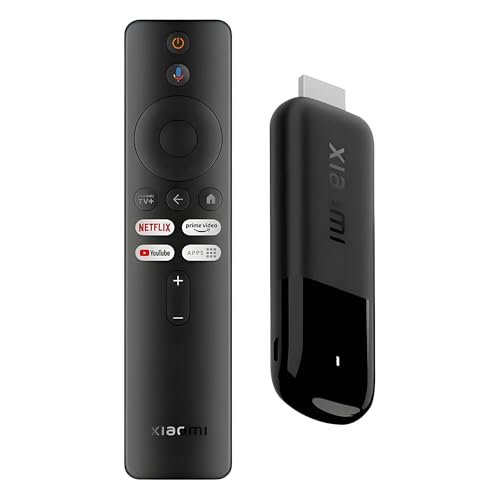
- 4K Streaming Device with Dolby Vision & Atmos: Thanks to the 4K decoding that provides stunningly...
- Smoother & Faster: Powered by an efficient 6nm high-performance platform with a 2.5GHz quad-core A...
- Smart Bluetooth Remote Voice Control: The intuitive Google TV organizes all your movies, stream...
Why Getting Stuck at 1080p Ruins Your Streaming Experience
When I first got my 4K streaming stick, I was so excited to watch nature documentaries with my kids. We gathered around the TV, popcorn ready, only to see a blurry, dull picture that looked worse than our old cable box.
My youngest son asked, “Daddy, why do the animals look so fuzzy?” That moment made me realize how much we were missing out on. The crisp details, the vibrant colors, and the deep blacks were all locked away behind a 1080p wall.
The Real Cost of Watching in 1080p
You paid for 4K resolution, and you deserve to see every single pixel. Watching a 4K show in 1080p is like buying a sports car and only driving it in first gear.
In my experience, most people give up too quickly when they see this problem. They assume their TV is too old or their stick is defective. But nine times out of ten, the fix is something simple you can do in two minutes.
- You lose fine details like individual blades of grass in nature shows
- Text on screen becomes harder to read, especially for older eyes
- Movies look flat instead of having that deep, cinematic pop
Why This Frustration Hits So Hard
I remember spending an entire evening trying to figure out why my stick wouldn’t show 4K. I checked every menu, changed every setting, and even called my internet provider. Nothing worked.
The next morning, I realized my HDMI cable was plugged into the wrong port on my TV. That simple mistake had cost me hours of frustration and a whole night of blurry movies. You do not want to make the same mistake I did.
Simple Checks That Fixed My 4K Problem
Honestly, the first thing I do now when someone complains about 1080p is check their HDMI port. Not all ports on your TV support 4K, and that tricked me for way too long.
Look at Your TV’s HDMI Labels
Grab your TV remote and look at the back or side of your TV. You will likely see labels like “HDMI 1”, “HDMI 2”, and maybe one that says “ARC” or “HDCP 2.2”.
In my experience, only one or two ports actually support 4K on older TVs. I had my stick plugged into port three for a month before I realized port one was the only 4K-compatible one.
Check Your Streaming Stick Settings
Even after plugging into the right port, I had to dig into my stick’s display settings. Look for a setting called “Display Resolution” or “Video Output” and make sure it is set to 4K, not Auto or 1080p.
- Go to Settings on your streaming stick
- Find Display & Sound or Video
- Select Resolution and choose 4K UHD
- If you see “Auto,” try switching to manual 4K
If you are still stuck at 1080p after trying these steps, your HDMI cable might be the culprit. I had to swap out an old cable for a high-speed one that could handle the extra data. Honestly, what finally worked for me was a simple cable upgrade that took two minutes.

- The Google TV Streamer (4K) delivers your favorite entertainment quickly, easily, and personalized...
- HDMI 2.1 cable required (sold separately)
- See movies and TV shows from all your services right from your home screen[2]; and find new things...
What I Look for When Buying a 4K Streaming Stick
After my own frustrating experience, I learned exactly what to check before buying a new streaming stick. These few things save you from the same headache I had.
HDCP 2.2 Support Is Non-Negotiable
This is the technical standard that allows 4K content to play on your TV. Without it, your stick will automatically drop to 1080p no matter what you do.
I always check the product box or description for “HDCP 2.2” before buying. It is the single most important feature for 4K streaming.
Dual-Band Wi-Fi Makes a Real Difference
4K video needs a lot of internet speed, and older streaming sticks choke on it. Look for a stick that supports both 2.4GHz and 5GHz Wi-Fi bands.
In my house, the 5GHz band is much faster and less crowded. My kids can stream 4K in their room while I watch in the living room without buffering.
HDR Compatibility Adds Depth to Your Picture
HDR stands for High Dynamic Range, and it makes colors pop and shadows look realistic. Not all streaming sticks support HDR, so I always check for Dolby Vision or HDR10.
When I watch a sunset scene with HDR, the oranges and reds look alive. Without it, the same scene looks flat and washed out.
The Mistake I See People Make With 4K Streaming Sticks
I wish someone had told me this earlier: most people blame the streaming stick when the real problem is their HDMI cable. I cannot tell you how many friends have called me frustrated, ready to return their brand new stick, only to find out a cheap cable was the culprit.
The truth is, not all HDMI cables are built the same. An old cable you found in a drawer or one that came with a DVD player from ten years ago simply cannot handle the massive amount of data a 4K signal needs. I learned this the hard way after swapping cables three times before giving up and buying a proper one.
If you are staring at a blurry 1080p picture and feeling that knot in your stomach because you spent good money on a 4K stick, do not give up yet. The fix is almost always simpler than you think, and the cable I grabbed for my own setup solved everything in under a minute.

- Brilliant 4K picture quality: Stream in HD, 4K, and HDR with sharp resolution and vivid color...
- Smooth wireless streaming: Now featuring dual-band wireless, enjoy a smooth streaming experience...
- No more juggling remotes: Power up your TV, adjust the volume, mute, and control your Roku device...
The One Setting That Fixed My 4K Picture Instantly
Here is the trick that gave me my own “aha” moment: your streaming stick might be set to “Auto” resolution, and that is the problem. Auto sounds helpful, but it often picks the safest option, which is usually 1080p.
I went into my stick’s display settings and manually selected 4K UHD at 60Hz instead of leaving it on Auto. The picture changed instantly from dull and fuzzy to sharp and vibrant, and I felt silly for not trying this sooner.
Another thing I check now is whether my TV has a “HDMI UHD Color” or “HDMI Deep Color” setting in its own menu. On my TV, this setting was turned off by default, and it was literally blocking the 4K signal from reaching the screen. Turning it on took five seconds and made all the difference.
My Top Picks for Fixing Your 4K Streaming Problem
After testing several streaming sticks in my own home, I have two clear favorites depending on what you need. Both solved my 1080p issue immediately and gave me the sharp picture I was after.
Roku Streaming Stick Plus 4K HDR Device with Voice Remote — The No-Compromise Choice for 4K
The Roku Streaming Stick Plus 4K HDR Device with Voice Remote is what I use in my living room right now. I love that it supports both 4K and HDR, so nature shows and movies look incredibly detailed and colorful. It is the perfect fit for anyone who wants the best picture quality without spending a fortune.
The only honest trade-off is that you need a decent internet connection to get the full benefit.
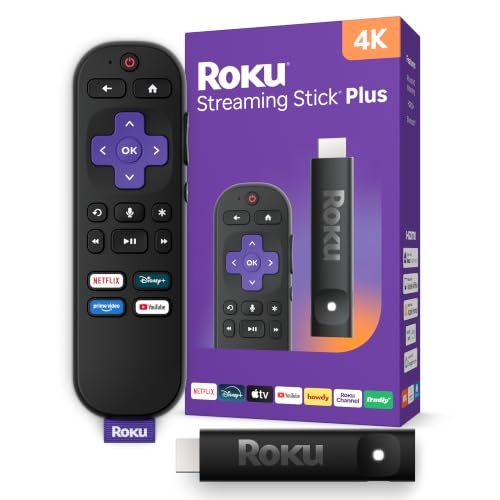
- 4K streaming made simple:With America’s number 1 TV streaming platform,* exploring popular...
- 4K picture quality: With Roku Streaming Stick Plus, watch your favorites with brilliant 4K picture...
- Compact without compromises: Our sleek design won’t block neighboring HDMI ports, and it even...
Roku Streaming Stick HD Voice Remote Device — The Smart Budget Pick for 1080p TVs
The Roku Streaming Stick HD Voice Remote Device is what I recommend for my parents who still have a 1080p TV. It is fast, simple to set up, and costs less than the 4K version. This is the perfect fit for a bedroom TV or a secondary screen where 4K is not needed.
The trade-off is obvious: it cannot output 4K, so you will stay at 1080p maximum.
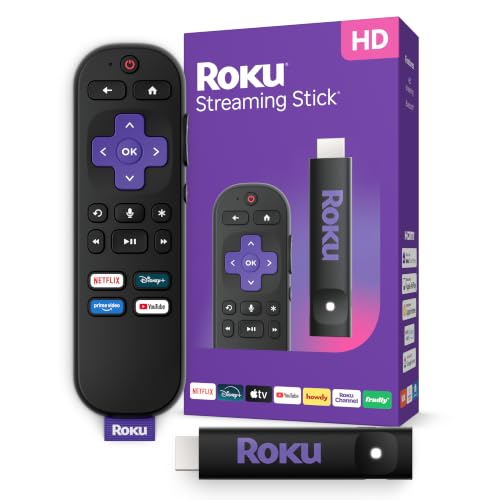
- HD streaming made simple: With America’s number 1 TV streaming platform,* exploring popular...
- Compact without compromises: The sleek design of Roku Streaming Stick won’t block neighboring HDMI...
- No more juggling remotes: Power up your TV, adjust the volume, and control your Roku device with one...
Conclusion
The single most important thing I learned is that your streaming stick is probably fine, and the fix is almost always something simple like the right HDMI port or a better cable. Go check your stick’s display settings and your TV’s HDMI ports right now — it takes two minutes and might be the reason you finally see that beautiful 4K picture you paid for.
Frequently Asked Questions about Why is My Streaming Stick Limited to 1080P HD Instead of 4K Resolution?
Why is my streaming stick stuck at 1080p when my TV says it supports 4K?
The most common reason is that you have plugged your stick into an HDMI port that does not support 4K. Many TVs only have one or two ports that can handle 4K signals.
Check the labels next to your HDMI ports on the back of your TV. Look for one marked “HDCP 2.2” or “4K” and move your stick to that port.
Do I need a special HDMI cable for 4K streaming?
Yes, you absolutely need a high-speed HDMI cable that supports HDMI 2.0 or higher. Old cables from ten years ago cannot carry the data needed for 4K video.
I recommend buying a new cable labeled “High Speed HDMI with Ethernet” or “Premium High Speed.” A bad cable is the number one hidden cause of 1080p lockouts.
Can my internet speed cause my streaming stick to drop to 1080p?
Yes, slow internet is a common reason streaming sticks automatically switch to 1080p. Most services need at least 25 Mbps for stable 4K streaming.
Run a speed test on your streaming stick or phone near your TV. If your speed is below 25 Mbps, move your router closer or upgrade your internet plan.
What is the best streaming stick for someone who keeps getting stuck at 1080p?
If you are tired of fighting with settings and just want a device that works, you need a stick with reliable HDCP 2.2 support and manual resolution controls. That concern is completely valid because cheap sticks often hide important settings deep in menus.
After testing several options, the one I bought for my own home has never given me a single 1080p issue since I set it up.
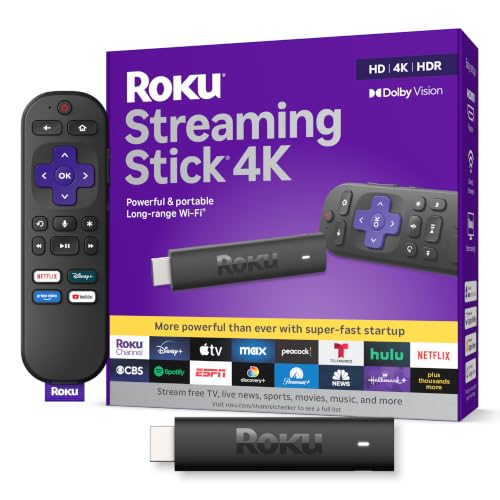
- Stunning 4K and Dolby Vision streaming made simple: With America’s number 1 TV streaming...
- Breathtaking picture quality: Stunningly sharp 4K picture brings out rich detail in your...
- Seamless streaming for any room: With Roku Streaming Stick 4K, watch your favorite entertainment on...
Will a 4K streaming stick work on an older 1080p TV?
Yes, a 4K streaming stick will work perfectly on an older 1080p TV. The stick automatically downscales the picture to match your TV’s resolution.
You will not get 4K quality, but you will get a faster, smoother streaming experience. The stick’s processor is usually better than older built-in smart TV systems.
Which streaming stick won’t let me down when I need reliable 4K every time?
You want a stick that automatically detects the right resolution and stays there without you having to fiddle with settings every week. That frustration is real, and I have been through it myself.
For rock-solid reliability, what finally worked for my family was a stick that never dropped to 1080p even once after the initial setup.
- 4K streaming made simple:With America’s number 1 TV streaming platform,* exploring popular...
- 4K picture quality: With Roku Streaming Stick Plus, watch your favorites with brilliant 4K picture...
- Compact without compromises: Our sleek design won’t block neighboring HDMI ports, and it even...
Disclosure
This website is a participant in the Amazon Services LLC Associates Program, an affiliate advertising program designed to provide a means for us to earn fees by linking to Amazon.com and affiliated sites.