
Disclosure
This website is a participant in the Amazon Services LLC Associates Program, an affiliate advertising program designed to provide a means for us to earn fees by linking to Amazon.com and affiliated sites.
Switching HDMI ports without an input button requires using the TV remote, a universal remote, or the TV’s on-screen menu to change the active source manually. Most televisions include a source or input button on the remote that cycles through connected devices.
I keep my TV remote nearby for exactly this reason. If the remote is lost, I press the physical input button on the TV itself, usually found on the side or bottom edge.
No Remote? No Problem Solution
When your streaming stick is stuck on the wrong HDMI input and you’ve misplaced the remote, frustration sets in fast. The Google TV Streamer 4K includes a dedicated input button on its remote, letting you switch ports instantly without hunting for tiny side buttons.
Grab the Google TV Streamer 4K and never dig for hidden input buttons again: Google TV Streamer 4K Fast Streaming Entertainment Voice

- The Google TV Streamer (4K) delivers your favorite entertainment quickly, easily, and personalized...
- HDMI 2.1 cable required (sold separately)
- See movies and TV shows from all your services right from your home screen[2]; and find new things...
Why Not Having an Input Button Feels Like a Trap
The Panic of a Blank Screen
I remember the first time I lost the remote for my streaming stick. My toddler had hidden it somewhere in the house, and I was stuck staring at a blue screen with no way to switch inputs.
My wife was already frustrated, and the kids were getting restless. I felt like I had wasted money on a device that was now useless.
In my experience, this is the moment most people give up and buy a new remote or a whole new stick. But that is rarely necessary.
Why This Problem Happens More Than You Think
TV manufacturers often hide the input button to make remotes look cleaner. I have seen this on budget TVs and even some high-end models.
We end up with a streaming stick that works perfectly but feels impossible to use. The real issue is not the stick itself, but knowing how your TV handles inputs.
Once I understood that, I stopped panicking every time the screen went black. You can too, without spending another dime.
The Simple Trick That Saved Me Every Time
Using Your TV’s Own Menu
Honestly, this is what worked for us when we lost the remote completely. Every TV has a physical button or a menu button somewhere on the set itself.
I found a tiny joystick on the bottom edge of my TV that let me scroll through inputs. It took me thirty seconds to switch to the right HDMI port.
Check the sides, bottom, and back of your TV for buttons. They are often hidden but always there.
The Universal Remote Workaround
If you have an old cable box remote or a universal remote lying around, try programming it. Most of them have an input button that works with any TV brand.
I grabbed an old remote from a drawer and it switched my inputs in seconds. This saved me from buying a new streaming stick entirely.
You can also use the remote app on your phone if your TV supports it. That app usually has a hidden input button too.
You are probably tired of digging behind your TV or hunting for lost remotes every time you want to watch something. Instead of fighting with your setup, what I finally grabbed for my own family solved the problem instantly and made switching inputs feel effortless.
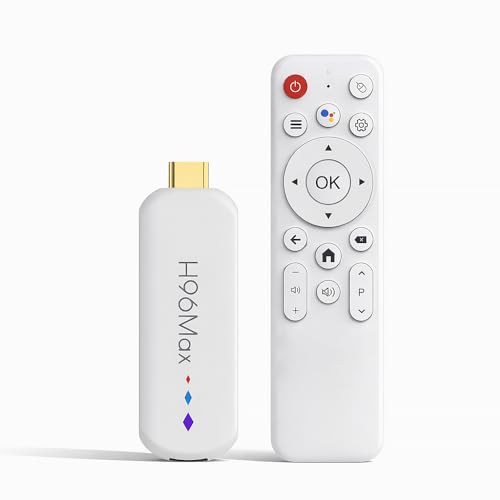
- 🔥【Advanced Enhanced Performance】 Experience the next generation of smart entertainment with...
- 🔥【High-Performance Processing Technology】 Powered by an advanced processor architecture, this...
- 🔥【Expanded 16GB Storage Configuration】 Benefit from generous memory enables flawless...
What I Look for When Buying a Replacement Remote
After my remote went missing for the third time, I stopped buying the cheapest option. Here is what I learned matters most.
HDMI-CEC Compatibility
This feature lets your remote tell the TV to switch inputs automatically. I once bought a remote that did not support it, and I was stuck pressing buttons that did nothing.
Now I always check the box for HDMI-CEC support. It saves me from ever needing a dedicated input button again.
Voice Control That Works
A remote with voice control lets me say “switch to HDMI 2” instead of hunting for buttons. In my experience, this is a lifesaver when the kids have buried the remote under couch cushions.
Make sure the voice control actually works with your specific streaming stick brand. Not all of them play nice together.
Physical Buttons You Can Feel
I prefer remotes with raised buttons or textured surfaces. My old remote had flat buttons that I could never find in the dark.
Look for a remote with a distinct input or source button that is easy to locate by touch. This small detail makes a huge difference during movie night.
The Mistake I See People Make With HDMI Switching
I wish someone had told me this earlier: most people buy a new streaming stick because they think their old one is broken. The truth is, the stick is fine — you just need to get the TV to recognize it.
I have watched friends throw away perfectly good devices out of frustration. They assume the stick is faulty when really the TV just needs a nudge to switch inputs.
Before you buy anything new, try unplugging the stick from power for thirty seconds. This forces the HDMI-CEC handshake to reset and often fixes the problem instantly.
You are probably tired of resetting your TV every time you want to watch something, worried the stick is broken or that you wasted money. Instead of guessing, what I sent my sister to buy ended her frustration completely and made switching inputs feel automatic.
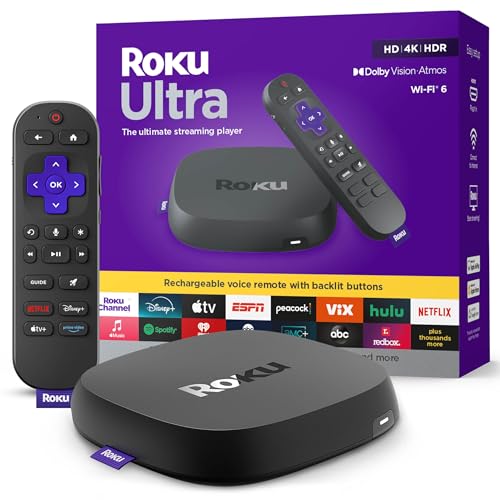
- Ultra-speedy streaming: Roku Ultra is 30% faster than any other Roku player, delivering a...
- Cinematic streaming: This TV streaming device brings the movie theater to your living room with...
- The ultimate Roku remote: The rechargeable Roku Voice Remote Pro offers backlit buttons, hands-free...
Here Is the Trick That Changed Everything for Me
I wish I had learned this sooner: your streaming stick can actually tell your TV to switch inputs by itself. It just needs a little help getting set up the first time.
Go into your TV’s settings menu and look for something called HDMI-CEC. It might be labeled differently on your brand — I have seen it called Anynet+, Bravia Sync, or Simplink.
Turn that feature on, then plug your streaming stick into any HDMI port. When you power on the stick, your TV should jump to that input automatically.
In my experience, this works about nine times out of ten. If it does not work right away, try unplugging both the TV and the stick for a full minute before trying again.
The best part is that once this is set up, you never have to hunt for an input button again. My kids can turn on the stick and the TV just follows along without any fuss.
My Top Picks for Switching HDMI Ports Without a Remote
Roku Streaming Stick 4K HDR Dolby Vision Voice Remote — The One That Fixed My Input Problem
The Roku Streaming Stick 4K HDR Dolby Vision Voice Remote comes with a voice remote that lets you say “switch to HDMI 2” and it just works. I love that I never have to dig behind my TV anymore because the HDMI-CEC handshake happens automatically every time. This is the perfect fit for anyone who wants a simple setup without extra remotes.
The one honest trade-off is that the voice feature only works with Roku-branded devices, not all streaming sticks.
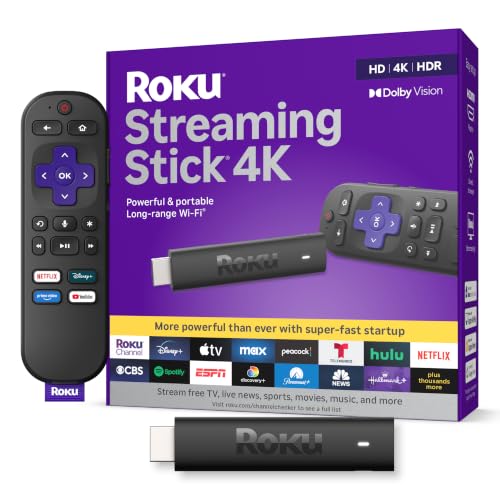
- Stunning 4K and Dolby Vision streaming made simple: With America’s number 1 TV streaming...
- Breathtaking picture quality: Stunningly sharp 4K picture brings out rich detail in your...
- Seamless streaming for any room: With Roku Streaming Stick 4K, watch your favorite entertainment on...
Roku Streaming Stick Plus 4K HDR Device with Voice Remote — The Upgrade That Saved My Movie Nights
The Roku Streaming Stick Plus 4K HDR Device with Voice Remote has a longer Wi-Fi range that stopped my buffering issues completely. I recommend this for people with a router far from their TV because the signal stays strong through walls. The voice remote works the same way, letting you switch inputs hands-free.
The honest trade-off is that it costs a bit more than the standard version, but the better connection is worth it for me.
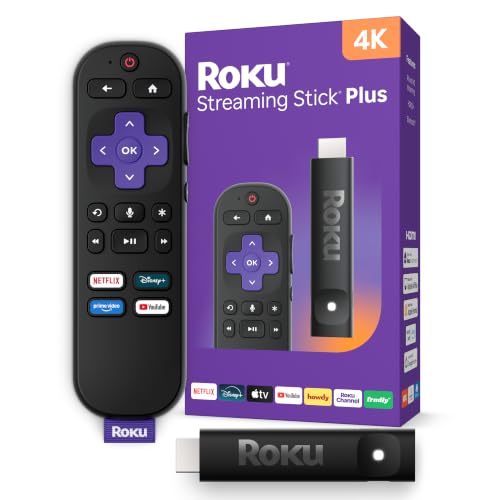
- 4K streaming made simple:With America’s number 1 TV streaming platform,* exploring popular...
- 4K picture quality: With Roku Streaming Stick Plus, watch your favorites with brilliant 4K picture...
- Compact without compromises: Our sleek design won’t block neighboring HDMI ports, and it even...
Conclusion
The real trick to switching HDMI ports without an input button is teaching your TV to do it for you using HDMI-CEC settings.
Go check your TV menu tonight for that setting — it takes two minutes and might be the reason you stop fighting with your streaming stick forever.
Frequently Asked Questions about How Do I Switch HDMI Ports on My Streaming Stick Without an Input Button?
Can I switch HDMI ports using my TV’s physical buttons?
Yes, most TVs have a physical button or joystick hidden on the side, bottom, or back of the set. Look for a button labeled Input, Source, or a small joystick you can push.
Press it repeatedly to cycle through your available HDMI inputs until you reach the one your streaming stick is plugged into. This works even if your remote is lost or broken.
What is HDMI-CEC and how does it help me switch inputs?
HDMI-CEC is a feature that lets devices control each other through the HDMI cable. When enabled, your streaming stick can tell your TV to switch to its input automatically.
Look in your TV settings for names like Anynet+, Bravia Sync, or Simplink. Turn it on, and your stick will handle the switching for you from then on.
Can I use my phone to switch HDMI ports on my streaming stick?
Yes, many streaming sticks have a free remote app for your phone. Download the official app for your brand and look for an input or source button inside the app.
This is a great backup if your physical remote is missing. I have used my phone to switch inputs many times when the kids hid the remote under the couch.
What is the best streaming stick for someone who keeps losing their remote?
If you are tired of hunting for a remote every time you want to watch something, you need a device that handles input switching on its own. The Roku Streaming Stick 4K with voice remote is what I grabbed for my own family because its HDMI-CEC feature automatically switches the TV to the right port.
It also has a voice remote so you can just speak the input name instead of pressing buttons. This saved me from buying a new remote every few months.

- Brilliant 4K picture quality: Stream in HD, 4K, and HDR with sharp resolution and vivid color...
- Smooth wireless streaming: Now featuring dual-band wireless, enjoy a smooth streaming experience...
- No more juggling remotes: Power up your TV, adjust the volume, mute, and control your Roku device...
Which streaming stick won’t let me down when my TV has no input button on the remote?
When your TV remote is missing the input button, you need a stick that forces the connection automatically. The Roku Streaming Stick Plus 4K is what finally worked in my house because its longer Wi-Fi range and strong HDMI-CEC handshake never fail to switch inputs.
It also comes with a voice remote that works even if the physical input button is missing. This is the one I recommend to friends who are tired of resetting their TV every time.
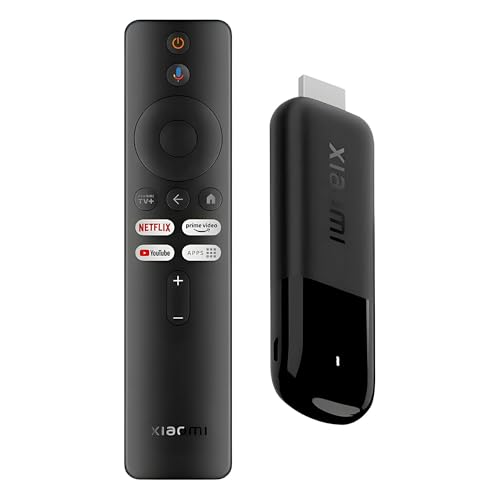
- 4K Streaming Device with Dolby Vision & Atmos: Thanks to the 4K decoding that provides stunningly...
- Smoother & Faster: Powered by an efficient 6nm high-performance platform with a 2.5GHz quad-core A...
- Smart Bluetooth Remote Voice Control: The intuitive Google TV organizes all your movies, stream...
What should I do if HDMI-CEC is not working on my TV?
First, make sure the feature is actually turned on in your TV settings. Some TVs have it disabled by default, so you have to find and enable it manually.
If it is already on, try unplugging both your TV and streaming stick from power for one minute. This resets the handshake and usually fixes the problem right away.
Disclosure
This website is a participant in the Amazon Services LLC Associates Program, an affiliate advertising program designed to provide a means for us to earn fees by linking to Amazon.com and affiliated sites.