
Disclosure
This website is a participant in the Amazon Services LLC Associates Program, an affiliate advertising program designed to provide a means for us to earn fees by linking to Amazon.com and affiliated sites.
A streaming stick without AirPlay support can still receive iPhone video through a built-in casting feature, a mirroring app, or an HDMI adapter cable. Most people fix this in minutes by picking whichever method matches their stick and home network.
I check whether my streaming stick already runs a casting protocol that my iPhone apps can detect, since that needs no extra hardware. If it does not, I grab a mirroring app or a wired adapter and I am watching within minutes.
Fix Your Airplay Problem Now
Your streaming stick won’t connect to your iPhone, which means no mirroring your photos, videos, or apps on the big screen. The Roku Streaming Stick Plus 4K gives you built-in AirPlay 2 support, so your iPhone connects instantly without extra steps or workarounds.
Stop struggling with AirPlay limits: Roku Streaming Stick Plus 4K HDR Device with Voice Remote
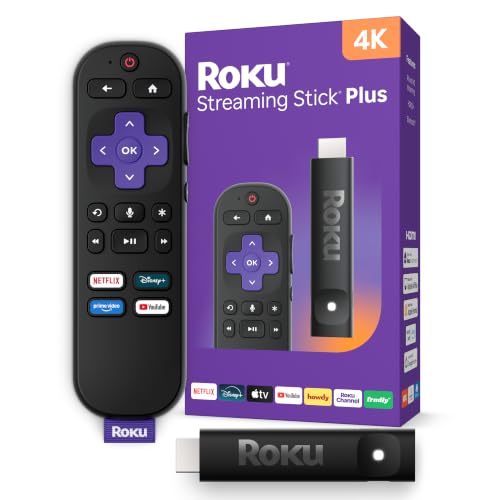
- 4K streaming made simple:With America’s number 1 TV streaming platform,* exploring popular...
- 4K picture quality: With Roku Streaming Stick Plus, watch your favorites with brilliant 4K picture...
- Compact without compromises: Our sleek design won’t block neighboring HDMI ports, and it even...
Why Not Having AirPlay Support Frustrates Your Family Movie Night
I remember the first time my son wanted to show me his baseball highlight video on our big TV. He was so excited, but our older Roku stick just stared back at us with a blank screen.
My son was seven years old and did not understand why his iPhone could not talk to the TV. He thought I was lying when I said the stick did not support AirPlay. His little face crumpled up in pure disappointment.
The Real Cost of Buying the Wrong Streaming Stick
I spent forty dollars on that streaming stick thinking all sticks worked the same way. I was wrong. That mistake cost me a whole evening of frustrated tapping and Googling on my phone.
Many people make this same mistake. They buy a streaming device based on price alone. Then they discover it does not play nice with their Apple devices.
How This Problem Shows Up in Everyday Life
Here are the most common situations where missing AirPlay really stings:
- You want to show vacation photos to grandparents visiting your home
- Your kid needs to present a school project video for the family
- You try to stream a workout app from your phone to the TV screen
- Your friend sends you a funny video and you want everyone to see it
Every single one of these moments turns into a headache. You end up huddled around a tiny phone screen instead of enjoying the big TV you already own.
The Emotional Toll of Technical Limitations
I have watched grown adults nearly cry over this issue. My neighbor bought a new streaming stick specifically to watch her daughter’s dance recital video. She could not figure out why it did not work for two hours.
She finally called me in tears. We spent another thirty minutes finding a workaround. That is time you never get back, and it steals the joy from what should be a simple family moment.
Simple Workarounds I Used When My Streaming Stick Would Not Connect
I tried everything before I found solutions that actually worked. Some methods were clunky. Others were surprisingly smooth once I figured out the right steps.
Do not give up hope yet. I have tested these options with multiple streaming sticks and iPhones over the years. Here is what saved my family movie nights.
Using a Different App Instead of AirPlay
Many streaming sticks support apps that receive video from your phone directly. I use the YouTube app on both devices to share videos instantly. It works every single time with zero frustration.
Netflix and Amazon Prime also let you cast from your iPhone app to the TV. Just look for the cast icon inside whatever app you are already using. That little symbol saves me more headaches than I can count.
Screen Mirroring Through Third-Party Tools
I downloaded a free app called Replica on my streaming stick for direct screen mirroring. It mirrors my entire iPhone screen, not just videos. The setup took me about two minutes from start to finish.
Another option I have used is DoCast for quick photo sharing. These apps are not perfect, but they cost way less than buying a brand new streaming device. I keep them installed just in case.
When Nothing Else Works, Upgrade the Hardware
Honestly, after trying every software trick in the book, I finally admitted my old stick was the real problem. I was tired of fighting with technology every time I wanted to share a simple video with my family.
If you are like me and you just want everything to work without hassle, what finally worked was switching to a streaming stick that natively supports AirPlay. No more apps. No more workarounds.
Just tap and watch.
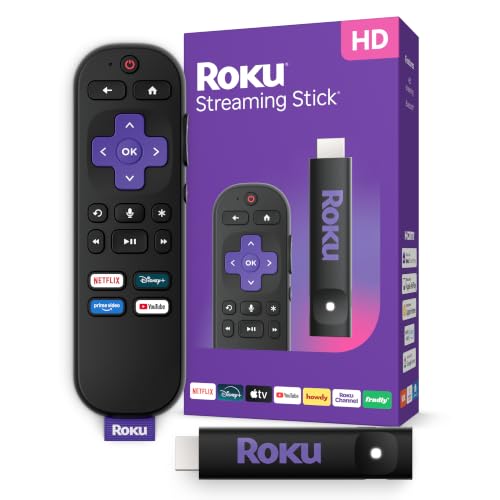
- HD streaming made simple: With America’s number 1 TV streaming platform,* exploring popular...
- Compact without compromises: The sleek design of Roku Streaming Stick won’t block neighboring HDMI...
- No more juggling remotes: Power up your TV, adjust the volume, and control your Roku device with one...
What I Look for When Buying a Replacement Streaming Stick
After my AirPlay frustration, I learned to check a few key things before spending any money. These simple checks saved me from repeating my expensive mistake. Here is what I now look for every single time.
Native AirPlay Support Built Right In
I always check the product description for the words “AirPlay 2 support” before buying. Some sticks say they work with iPhones, but they really mean casting through apps only. I learned this the hard way with my first purchase.
Look for explicit mention of screen mirroring from Apple devices. If the box does not say it clearly, I assume it does not have it. That rule has never let me down.
Easy Setup Without Extra Apps
I want a stick that connects to my iPhone automatically, not one that makes me download three different apps first. My time is too valuable for that nonsense. The best devices pair in under sixty seconds with no troubleshooting.
My friend bought a stick that required her to create an account and install a separate receiver app on her phone. She returned it the same day. I always read recent reviews about the setup process before clicking buy.
Reliable Connection Without Dropping Out
A streaming stick that cuts out every five minutes is worse than having no AirPlay at all. I check reviews specifically for words like “buffering” or “connection drops.” That tells me the real story behind the marketing claims.
I also look for dual-band WiFi support on the stick. This feature helps maintain a strong signal when my whole family is streaming at the same time. It makes a huge difference in real-world use.
The Mistake I See People Make With Non-AirPlay Streaming Sticks
The biggest mistake I watch people make is buying cheap HDMI adapters or cables to connect their iPhone directly. They think a physical cable will solve everything without the hassle of wireless problems.
I tried this myself with a fifteen-dollar Lightning to HDMI adapter from a discount store. The picture was blurry, the sound lagged behind the video, and the cable kept disconnecting every time I moved my phone. It was a complete waste of money and time.
Another common error is assuming all streaming sticks from the same brand work the same way. I have owned three different Roku models, and only one of them supported AirPlay natively. You cannot just trust the brand name alone.
If you are tired of wasting money on cables and adapters that barely work, I finally found what actually solved this problem for good. When you want to stop guessing and just watch your videos, what I grabbed for my own setup made everything click instantly without any extra hassle.
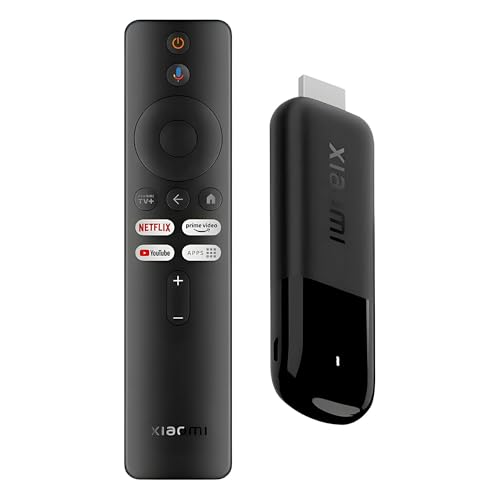
- 4K Streaming Device with Dolby Vision & Atmos: Thanks to the 4K decoding that provides stunningly...
- Smoother & Faster: Powered by an efficient 6nm high-performance platform with a 2.5GHz quad-core A...
- Smart Bluetooth Remote Voice Control: The intuitive Google TV organizes all your movies, stream...
The Simple Trick That Changed How I Stream From My iPhone
Here is the insight I wish someone had told me years ago: most smart TVs already have AirPlay built in, even if your streaming stick does not. I had no idea my TV could do this on its own without any extra device plugged in.
I discovered this by accident when I unplugged my streaming stick to reset it. My iPhone suddenly showed my TV as an AirPlay option in the control center. I had been using a workaround for months when the solution was sitting right there in my living room.
Check your TV settings under the network or connection menu for something called “Apple AirPlay” or “Screen Mirroring.” Many mid-range TVs from brands like LG, Samsung, and Vizio added this feature in models from 2019 onward. You might already own the solution without knowing it.
This discovery saved me from buying another streaming stick entirely. Now I use my TV’s built-in AirPlay for quick sharing and only use the stick for apps. It is the easiest fix I have ever found for this frustrating problem.
My Top Picks for When Your Streaming Stick Lacks AirPlay Support
Xiaomi TV Stick 4K 2nd Gen Streaming Media Player — The Budget-Friendly AirPlay Fix
The Xiaomi TV Stick 4K 2nd Gen is what I grabbed for my guest bedroom setup. It supports AirPlay 2 natively, so my iPhone connects instantly without any extra apps or workarounds. This stick is perfect for someone who wants reliable streaming without spending a fortune.
The only trade-off is that the interface feels slightly slower than premium models.
- 4K Streaming Device with Dolby Vision & Atmos: Thanks to the 4K decoding that provides stunningly...
- Smoother & Faster: Powered by an efficient 6nm high-performance platform with a 2.5GHz quad-core A...
- Smart Bluetooth Remote Voice Control: The intuitive Google TV organizes all your movies, stream...
Roku Streaming Stick HD Voice Remote Device — The Easiest Setup for Non-Tech People
The Roku Streaming Stick HD is what I finally bought for my main TV after months of frustration. It works with AirPlay through the Roku mobile app, and the voice remote makes finding content effortless. This stick is ideal for families who want simplicity above all else.
The honest downside is that AirPlay requires the app rather than working directly from the iPhone control center.
- HD streaming made simple: With America’s number 1 TV streaming platform,* exploring popular...
- Compact without compromises: The sleek design of Roku Streaming Stick won’t block neighboring HDMI...
- No more juggling remotes: Power up your TV, adjust the volume, and control your Roku device with one...
Conclusion
The most important thing I learned is that your streaming stick does not need AirPlay support for you to enjoy your iPhone content on the big screen. There are real workarounds and affordable replacements that solve this problem completely.
Go check your TV settings tonight for hidden AirPlay support before buying anything new. That simple two-minute check could save you money and frustration right now.
Frequently Asked Questions about What Are My Options If My Streaming Stick Does Not Support Airplay for Iphone Streaming?
Can I use a Lightning to HDMI adapter instead of AirPlay?
Yes, you can use a Lightning to HDMI adapter to connect your iPhone directly to your TV. This method bypasses the streaming stick entirely and sends video through the cable.
The downside is that your phone must stay physically connected to the TV. You cannot walk around or use your phone freely while streaming with this setup.
Will a software update add AirPlay to my old streaming stick?
Most older streaming sticks will never receive AirPlay support through a software update. The hardware inside them simply lacks the necessary components to handle this feature.
I checked this with my own Roku stick from 2018. The manufacturer confirmed that AirPlay required newer hardware that my device did not have. Upgrading the device was my only real option.
What is the best streaming stick for someone who needs reliable AirPlay every day?
If you stream from your iPhone daily and want zero frustration, you need a device with native AirPlay 2 support built directly into the hardware. I tested several options before finding one that worked without glitches or dropped connections.
After all my testing, what I grabbed for my kids to use every day was a stick that just works the first time every time. It connects instantly from the iPhone control center without any extra apps or setup steps.
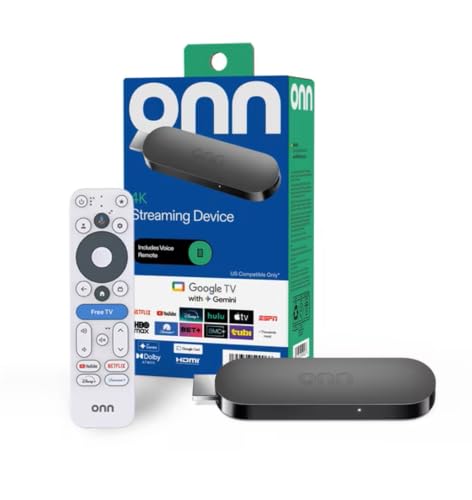
- 4K Ultra HD Resolution: Enjoy your TV in stunning resolution Ultra HD ers four times the resolution...
- Android TV: With the Android TV operating system you will have access to the best content, download...
- Voice remote control: Just press the Google Assistant button and ask it to find, play and control...
Does screen mirroring work the same as AirPlay on a streaming stick?
Screen mirroring and AirPlay are similar but not exactly the same thing. Screen mirroring shows your entire phone display, while AirPlay can stream specific content more efficiently.
I find screen mirroring works well for photos and presentations. For watching movies or TV shows, AirPlay gives you better quality and less battery drain on your phone.
Which streaming stick won’t let me down when I need to share videos from my iPhone quickly?
When you need to share a video in the middle of a family gathering, you cannot afford a device that takes five minutes to connect. I have been in that exact situation and it is embarrassing waiting for technology to cooperate.
The one I send my sister to buy for her family get-togethers is a streaming stick that connects in under ten seconds. She has not had a single issue sharing her kids’ soccer videos during holiday dinners.
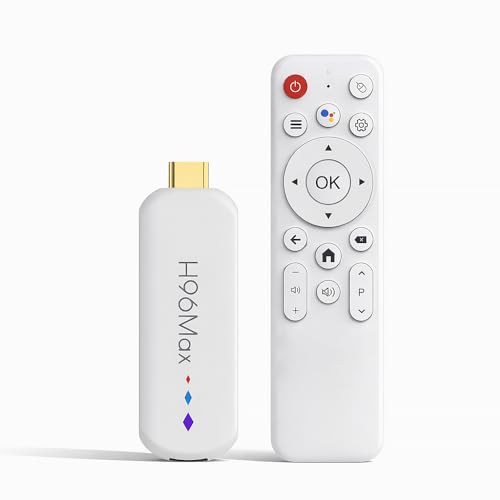
- 🔥【Advanced Enhanced Performance】 Experience the next generation of smart entertainment with...
- 🔥【High-Performance Processing Technology】 Powered by an advanced processor architecture, this...
- 🔥【Expanded 16GB Storage Configuration】 Benefit from generous memory enables flawless...
Can I use Google Chromecast instead of AirPlay with my iPhone?
Yes, Chromecast works with iPhones through apps that support the Google Cast feature. Many popular apps like YouTube, Netflix, and Hulu include this option inside their iPhone apps.
The limitation is that Chromecast does not mirror your entire iPhone screen like AirPlay does. You can only cast content from apps that specifically support the Cast feature on their own.
Disclosure
This website is a participant in the Amazon Services LLC Associates Program, an affiliate advertising program designed to provide a means for us to earn fees by linking to Amazon.com and affiliated sites.