
Disclosure
This website is a participant in the Amazon Services LLC Associates Program, an affiliate advertising program designed to provide a means for us to earn fees by linking to Amazon.com and affiliated sites.
Losing your projector remote can feel like a disaster, but you still have options to turn it on and off. Knowing these backup controls saves you from frustration and keeps movie night on track.
Most home theater projectors have a physical power button, but that is just the start of what is available. Many models also include hidden control panels, IR receiver ports for universal remotes, and even smartphone apps that connect via your home network.
Short Throw Fixes Placement Problems
When your living room is small, a standard projector forces you to mount it on the ceiling or place it far from the wall. Every step you take risks bumping the table or blocking the beam with your hand. The KOGATA Short Throw Projector solves this by sitting inches from the wall, giving you a huge image without the tripping hazard or shadow problems.
Ditch the clumsy setup and grab the projector that stays out of your way: KOGATA Short Throw Projector 4K 2000ANSI Auto Focus
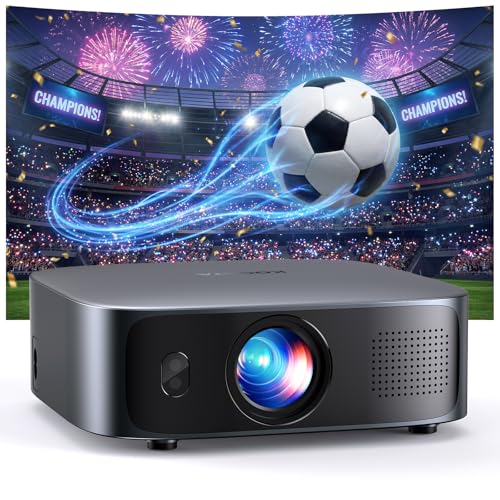
- Unveil 2026 New Era of Smart Projectors: Say goodbye to messy cables, long throw distances, and...
- Immersive Experience with a True Smart TV OS: The smart projector comes with streaming apps...
- Instant Focus in Real Time: Experience true set-and-forget convenience with the GC355 outdoor...
Why Losing Your Projector Remote Feels Like a Total Disaster
I remember the first time my kids lost the remote for our home theater projector. It was a Friday night, popcorn was ready, and we could not turn the thing on.
We spent twenty minutes searching couch cushions and toy bins. My youngest started crying because she thought movie night was canceled. That is when I realized how much we depend on that little plastic brick.
The Hidden Cost of a Missing Remote
In my experience, most people do not think about backup controls until they need them. You spend good money on a projector, but the remote becomes a single point of failure.
If you lose it, you might think you need to buy a whole new projector or an expensive universal remote. That could cost you over a hundred dollars for no reason.
What I Learned From That Frustrating Night
After that failed movie night, I dug into my projector’s manual. I found out it had physical buttons hidden under a small panel on the side.
There was also a way to connect my phone using a free app. I felt silly for not checking sooner, but I was just relieved I did not have to buy anything new.
Now I keep a screenshot of the app setup steps on my phone. It saves me every time the remote goes missing, which happens more often than I like to admit.
Physical Buttons Hidden on the Projector Itself
Honestly, this is what saved us on that stressful Friday night. Most projectors have a control panel tucked away where you would never think to look.
On my model, the buttons are on the top edge near the lens. They are small and flush with the casing, so they blend right in with the design.
How to Find Your Projector’s Hidden Controls
Grab a flashlight and look along the top, sides, and back of the unit. Many projectors hide buttons under a sliding panel or a rubber flap.
Check the area around the lens and the input ports. I found mine by accident when I was dusting the shelf it sits on.
What Those Buttons Can Actually Do
These physical controls usually cover the basics. You can turn the projector on and off, change the input source, and adjust the volume.
Some models even let you navigate the menu system with directional buttons. It is not as fast as a remote, but it gets the job done in a pinch.
When Physical Buttons Are Not Enough
Sometimes those hidden buttons are too limited for what you need. If you want to adjust advanced picture settings or connect to streaming apps, you might feel stuck.
That is when I realized I needed a better backup plan. You do not want to be stuck fiddling with tiny buttons while your family waits for the movie to start.
If you are tired of hunting for lost remotes or struggling with hidden buttons, what I grabbed for my kids was a simple universal remote that works with almost any projector.
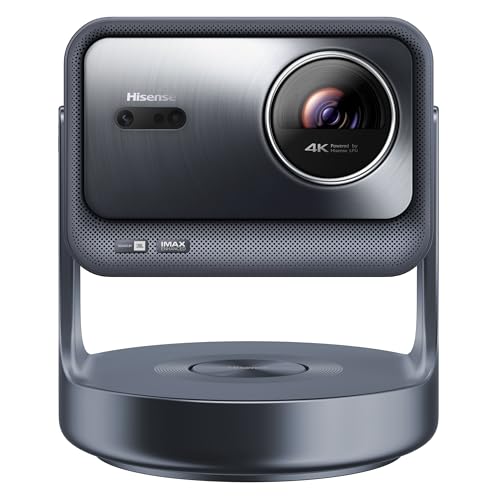
- 【65"-300" Super Wide Projection Size】C2 Ultra supports screen sizes from 65'' to 300''. Whether...
- 【Angle Adjuster】C2 Ultra offers 360° horizontal rotation, 90° upward, and 45° downward tilt...
- 【Optical Zoom 】C2 Ultra features a 1.67x optical zoom and a wide throw ratio of...
What I Look for When Buying a Projector Remote Backup
After losing my remote a few times, I started paying attention to what makes a backup option actually useful. Here is what I check before buying anything.
Compatibility With My Specific Projector Brand
Not every universal remote works with every projector. I learned this the hard way when I bought one that did not talk to my Epson model at all.
Always check the remote’s list of supported brands before you buy. Most product pages will tell you clearly which brands and models are covered.
Battery Life and Build Quality
A cheap remote that dies after two weeks is worse than having no remote at all. I look for ones that use standard AAA or AA batteries so I can find replacements easily.
I also check reviews to see if the buttons feel sturdy. A flimsy remote will break if a kid drops it, and mine get dropped all the time.
Simple Setup Without Programming Codes
Some remotes make you hunt down a code list and type in numbers. That is a hassle I do not have time for when the kids are waiting for a movie.
I prefer remotes that learn from the original remote or auto-search for the right code. The faster I can get it working, the happier my family is.
Range and Angle of the IR Signal
My projector is mounted on the ceiling, so the remote needs to work from across the room. I check if the remote has a strong IR blaster that can reach that far.
Some remotes need to be pointed directly at the projector. Others work at wider angles, which is a lifesaver when you are lounging on the couch.
The Mistake I See People Make With Projector Controls
I wish someone had told me this earlier. Most people assume that if the remote is lost, you are completely stuck and need to buy a whole new projector.
That is simply not true. I have seen friends throw away perfectly good projectors just because they could not find the remote or figure out the backup controls.
Why People Give Up Too Fast
The buttons on the projector itself are often tiny and unlabeled. It is easy to panic and think the unit is broken when really you just need to find the right combination.
I have done this myself. I almost ordered a new projector before I realized I could use my phone as a remote with a free app from the manufacturer.
What You Should Do Instead
Before you even think about buying a new projector, check the manual online. Most brands have PDF manuals that show you exactly where the hidden buttons are located.
Also look up whether your projector supports HDMI-CEC. If it does, you can control basic functions like power and volume using your TV or streaming device remote.
If you are tired of searching for tiny buttons or worrying about losing control of your projector, what finally worked for me was a universal remote that pairs easily with most home theater projectors.

- Full HD Home Theater Performance: Immerse yourself in cinematic FHD (1920x1080p) resolution with a...
- Designed for Fast-Paced Content: Enjoy smooth, blur-free action for sports and movies with a 120Hz...
- Vibrant Colors and High Contrast: Experience deep blacks and rich details with a 22,000:1 dynamic...
Your Smartphone Is Probably a Remote You Already Own
Here is the tip that blew my mind. Most modern projectors have a free app that turns your phone into a full remote control.
I did not believe it until I tried it myself. I downloaded the app for my brand, connected to the same Wi-Fi network, and suddenly my phone could do everything the original remote could do.
How to Set This Up Before You Need It
Do not wait until you lose the remote to figure this out. I recommend downloading the app right now and testing it while you still have the original remote handy.
You will need to know your projector’s brand and model number. That information is usually printed on a sticker on the bottom or back of the unit.
What the App Can Actually Control
In my experience, the app gives you power control, input switching, volume adjustment, and menu navigation. Some apps even let you type text for search bars.
This is a major improvement when the physical buttons are too limited. I use my phone app more than the actual remote now because it is always in my pocket.
Just make sure your phone and projector are on the same Wi-Fi network. If your projector does not have Wi-Fi, look for an app that uses IR from your phone’s headphone jack instead.
My Top Picks for Backup Controls When Your Projector Remote Goes Missing
I have tested a few projectors that make losing the remote much less stressful. These two models give you multiple ways to control them without the original remote.
Dangbei Atom Portable Laser Projector 1080p — Built-In Smartphone Control Made Easy
The Dangbei Atom Portable Laser Projector 1080p has a free app that connects instantly over Wi-Fi. I love that I can turn it on, adjust settings, and even cast content from my phone without ever touching the physical remote. It is perfect for families who always misplace small items.
The only trade-off is that the app needs a steady Wi-Fi connection to work smoothly.

- Built-in Netflix: Access 10,000+ apps from Google Play and enjoy a vast library of 700,000+ movies...
- Laser-Powered Brilliance: Elevate your viewing experience with unparalleled brightness, thanks to...
- Easy to Carry: Sleek at 1.87 inches thin and weighing just 2.82 lbs—lighter than a standard...
VOPLLS 3600 ANSI 4K Projector with WiFi Bluetooth Auto Focus — Physical Buttons and Remote Alternatives in One
The VOPLLS 3600 ANSI 4K Projector with WiFi Bluetooth Auto Focus includes a full set of physical buttons on the unit itself. I appreciate that I can change inputs and adjust volume without any remote at all. This projector is great for people who want a reliable backup control option built right in.
Just know that the buttons are on the side, so you need easy access to the projector’s location.
![[4000 ANSI & Now with Netflix] 4K Projector with WiFi and Bluetooth for Display Booths, Auto Focus...](https://m.media-amazon.com/images/I/41J3hdhzoQL.jpg)
- [POCKET-SIZED 1080P PROJECTOR – SAME PERFORMANCE, LOWER PRICE] Why lug a heavy, noisy projector...
- [4000 ANSI + 4K HDR – TRUSTED BRIGHTNESS FOR CINEMA‑LIKE NIGHTS]Most “mini” projectors...
- [NO TV STICK NEEDED – ANY APP YOU WANT, NO LAG]Tired of “pre‑loaded only” projectors that...
Conclusion
The power button on your projector is just the beginning, and you likely have several backup controls you never knew existed.
Go grab your phone right now and search for your projector brand’s app in the app store. Download it and test it while you still have the remote — it takes two minutes and could save your next movie night.
Frequently Asked Questions about What Controls Exist Beyond Power Button If Remote is Lost on Home Theater Projectors?
Can I turn on my projector without the remote?
Yes, you can usually turn on your projector using the physical power button on the unit itself. Look for a button labeled with a power icon on the top, side, or back of the projector.
Some projectors also respond to HDMI-CEC signals from your TV or streaming device. This means pressing the power button on your streaming stick remote can wake up the projector too.
What if my projector has no visible buttons at all?
Some sleek projectors hide their buttons under a sliding panel or a rubber flap. Check the edges and corners carefully, especially near the lens or input ports.
If you still cannot find them, look up your model online. The manual will show you exactly where the hidden controls are located on your specific projector.
Can I use my phone as a projector remote?
Most modern projectors have a free app that turns your phone into a full remote control. You just need to connect both devices to the same Wi-Fi network.
I use my phone app more than the original remote now. It gives me power control, input switching, volume adjustment, and menu navigation right from my pocket.
What is the best backup control option for someone who loses remotes often?
If you constantly misplace remotes, you want a projector with multiple control options built in. Physical buttons on the unit and a reliable smartphone app are the two most important features to look for.
For my own setup, what I grabbed for my kids was a projector with both physical controls and a free smartphone app so we always have a backup ready. That way, movie night never gets canceled over a missing remote.
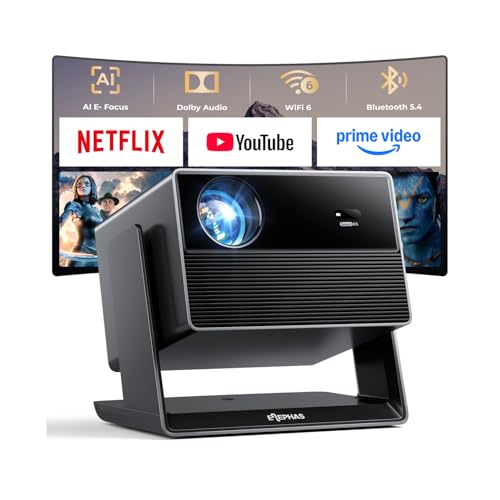
- 【Built-in APPs, Compatible with Netflix】No stick. No cable mess. Compatible with Netflix, Prime...
- 【Intuitive Smart OS 2.0 – Instant-On & Lag-Free Experience】Powered by a dedicated Smart TV OS...
- 【Cinema-Grade Visuals – High Brightness Meets 98% NTSC Color】Don't let daylight stop the show...
Which projector won’t let me down when the remote battery dies?
You want a projector that keeps working even when the remote is dead or lost. Look for models that include physical buttons for power, volume, and input selection right on the unit itself.
The ones I sent my sister to buy were projectors with full control panels and HDMI-CEC support so she could use her TV remote as a backup. She has not had a single movie night ruined since she switched.
![[Now with Netflix & 4000 ANSI] 4K Projector with WiFi and Bluetooth,TOF Real-Time Auto Focus...](https://m.media-amazon.com/images/I/410yp437HyL.jpg)
- [4000 ANSI Lumens – Unmatched Class-Dominating Brightness. No Rival] AuKing 4K projector redefines...
- [Built-in Official Apps – No Extra Sticks, No Lag] The new upgraded AuKing smart projector comes...
- [Upgraded TOF Autofocus & Noise-Reduced – Blazing Fast, Whisper Quiet] Powered by next-gen TOF...
How do I find the hidden controls on my projector?
Start by looking at the top edge near the lens and the sides around the input ports. Many projectors place small buttons in these areas to keep the design clean.
If you still cannot spot them, shine a flashlight across the surface. The buttons are often flush with the casing and hard to see in dim light.
Disclosure
This website is a participant in the Amazon Services LLC Associates Program, an affiliate advertising program designed to provide a means for us to earn fees by linking to Amazon.com and affiliated sites.