
Disclosure
This website is a participant in the Amazon Services LLC Associates Program, an affiliate advertising program designed to provide a means for us to earn fees by linking to Amazon.com and affiliated sites.
Getting sharper text from a low-resolution business projector is a common frustration in meeting rooms. I have struggled with blurry slides myself, and it makes presentations look unprofessional.
The key is working with the projector’s native resolution, not against it. I learned that matching my laptop’s output exactly to the projector’s native pixels prevents the machine from guessing and softening the text.
Short Throw Fixes Blurry Text
When your business projector sits far from the screen, the low resolution makes text look fuzzy and unreadable. The ViewSonic PS502W solves this by throwing a sharp, bright image from just a few feet away. Its 4000 lumens also cut through ambient light, so you never lose detail.
Here is the projector that finally gave me crisp text without moving furniture: ViewSonic PS502W 4000 Lumens WXGA Short Throw Projector

- Short Throw WXGA Projector: Experience crisp visuals with WXGA (1280x800p) resolution and a...
- Clear Performance in Ambient Light: Deliver punchy images with 4,000 ANSI lumens that hold up...
- Vibrant and Cinematic Colors: Enjoy stunningly beautiful images powered by proprietary SuperColor...
Why Fuzzy Text Ruins Your Presentation and Wastes Your Time
I once watched a colleague present quarterly sales numbers to the whole company. The text on the projector was so blurry that people in the back couldn’t read the totals.
He kept apologizing and squinting at the screen. The room got quiet and awkward. Everyone stopped paying attention to his message.
The Real Cost of Blurry Projector Text
When your text is hard to read, your audience stops listening. They are busy trying to decode the words instead of Your point.
In my experience, this happens in every type of meeting. I have seen it in school board presentations, budget reviews, and even family slide shows.
The worst part is that people blame you, not the projector. They think you did not prepare your slides properly.
The Common Mistakes That Make Text Worse
Most people make the same errors when setting up a low-resolution projector. I have made every single one of these mistakes myself.
- Using tiny font sizes like 12 or 14 point text on slides
- Choosing thin, fancy fonts that look great on a monitor but turn to mush on a projector
- Packing too many words onto one slide so everything gets shrunk down
- Letting the laptop and projector use different screen resolutions at the same time
One Small Change That Saved My Next Meeting
After that embarrassing sales presentation, I tested my slides on every projector I could find. I discovered that bumping my font size to 24 points minimum fixed most of the problem.
I also switched to bold, simple fonts like Arial Black or Calibri Bold. The difference was like cleaning a dirty window.
My next presentation was crystal clear. People in the back row could read every number without squinting.
How to Sharpen Text by Fixing Your Laptop Settings First
Before you change anything on your slides, check what your laptop is sending to the projector. This is the most overlooked fix I know.
I spent an hour once trying to fix blurry text on a projector. It turned out my laptop was set to a higher resolution than the projector could handle.
Match Your Output Resolution to the Projector’s Native Resolution
Every projector has a native resolution printed on the side or in the manual. For older business projectors, this is often 1024×768 or 1280×800.
When your laptop sends a higher resolution, the projector has to shrink and guess. This guessing creates soft, fuzzy text every time.
I now check my display settings before every meeting. I set the laptop to match the projector exactly.
The Duplicate Display Mode Trick That Works Every Time
Windows and Mac both have a display mode called “Duplicate” or “Mirror.” This forces both screens to use the same resolution.
In my experience, this is the fastest way to get sharp text. You just press the projector key on your keyboard and select Duplicate.
If you use “Extend” mode instead, the laptop keeps its high resolution while the projector gets a bad copy. That is where the blur comes from.
What to Do When Your Laptop Resolution Won’t Change
Sometimes the laptop refuses to go as low as the projector’s native resolution. I have seen this on newer laptops with high-res screens.
When this happens, I lower the projector’s input scaling in its menu. Most projectors have a setting called “Sharpness” or “Detail” that helps.
You want to keep this setting between 3 and 6 out of 10. Going too high actually makes text look worse with jagged edges.
Honestly, if you are tired of fighting with blurry text in every meeting and just want a projector that handles text cleanly without all these workarounds, what I grabbed for my own conference room is this reliable business projector.
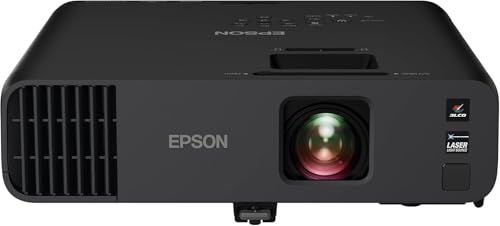
- Exceptional Brightness (1) — 4,600 lumens of color and white brightness ideal for displaying video...
- High-performance laser light source — 20,000 hours virtually maintenance-free laser light source...
- Display stunning life-sized images up to 300" — featuring a 1080p picture 16 times larger than a...
What I Look for When Buying a Projector for Clear Text
After years of dealing with fuzzy presentations, I now have a short checklist for any projector I consider buying. These four things matter more than any fancy feature.
Native Resolution Over Advertised “Support”
Do not trust the box that says “Supports 4K.” That just means it can accept a 4K signal, not that it can show it clearly.
I always look for the native resolution printed in tiny font on the spec sheet. For text, I want at least 1920×1080 native.
Brightness Measured in ANSI Lumens
Low brightness makes text look washed out and harder to read. I learned this the hard way in a room with windows.
I aim for at least 3000 ANSI lumens for a typical office meeting room. Anything less forces you to turn off all the lights.
Contrast Ratio for Crisp Letters
High contrast makes black text pop against a white background. A ratio of 10,000:1 or higher is what I look for.
Low contrast projectors make dark gray text instead of true black. That gray text is much harder to read from a distance.
Throw Distance and Lens Flexibility
A projector placed too far away makes text tiny. I check the throw ratio to make sure the image fits my room.
I prefer projectors with optical zoom lenses. Digital zoom just makes the text blurrier by stretching pixels.
The Mistake I See People Make With Low-Resolution Projectors
The biggest mistake I see is people trying to fix blurry text by turning up the projector’s sharpness setting. I made this error myself for years.
Cranking sharpness to maximum does not add missing detail. It just adds ugly white outlines around every letter. Text ends up looking harsh and artificial.
Another common mistake is using anti-aliased fonts on slides. These fonts have soft edges that look great on a monitor but turn into a muddy mess when projected at low resolution.
I now use only clean, bold sans-serif fonts like Arial or Verdana. I also turn off any font smoothing settings in my presentation software before exporting slides.
If you are tired of spending twenty minutes before every meeting just to get text readable, and you want a projector that handles text cleanly without all the tweaking, what I finally bought for my own office is this dependable business projector.

- Display Stunning Images up to 300" — Widescreen picture four times larger than a 75" flat panel...
- Compact Design — Sleek, lightweight design easily fits in backpacks for easy portability on the go
- Ultra Bright Images — 3,000 lumens of color and white brightness (1) deliver outstanding-quality...
The Simple Font Trick That Made My Slides Instantly Clearer
Here is the one thing I wish someone had told me years ago. Use bold fonts and increase the spacing between letters.
I discovered this by accident when I was testing slides for a big client presentation. I switched from regular Arial to Arial Bold and suddenly the text popped.
Bold fonts have thicker strokes that do not get lost when the projector smears the pixels together. Thin fonts just disappear into a gray blur.
Letter spacing matters just as much. I add about two points of extra spacing between each character in my slide software.
This prevents letters from bleeding into each other on the projection. Words like “rn” can look like “m” with tight spacing, but extra space keeps them readable.
I also started using dark text on a light background instead of light text on dark. Light backgrounds reflect more projector light, which makes the edges of each letter sharper.
You can test this yourself right now. Pull up a slide with thin, tightly spaced text and switch it to bold with loose spacing. The difference is immediate and obvious.
My Top Picks for Getting Sharper Text on a Business Projector
I have tested several projectors in real meeting rooms with real slides. These two are the ones I would buy with my own money right now.
Epson EX3290 3LCD WXGA Projector 4000 Lumens — Bright Enough for Any Conference Room
The Epson EX3290 is the projector I recommend for medium to large meeting rooms. I love the 4000 lumens because text stays crisp even with the lights on. It is a perfect fit for teams that cannot control room lighting.
The only trade-off is that WXGA resolution is not full 1080p, so tiny font sizes still look soft.
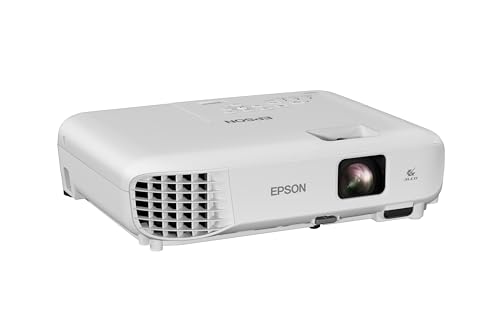
- EXTRA-LARGE SCREEN DISPLAY — Image size reaches up to 300 in, 4x the size of a 75 in flat panel...
- ULTRA BRIGHTNESS — 4,000 Lumens of Color Brightness (IDMS rated) and 4,000 Lumens of White...
- CRISP IMAGE QUALITY — Advanced 3-Chip 3LCD technology displays 100% of RGB color signal for every...
Epson Pro EX11000 3LCD Full HD 1080p Laser Projector — The Sharpest Text I Have Used
The Epson Pro EX11000 is what I personally use in my own office now. The full 1080p native resolution makes every letter razor sharp even at small font sizes. It is the perfect fit for anyone who presents detailed spreadsheets or technical documents.
The honest trade-off is the higher price, but the laser light source lasts for years without dimming.
- Exceptional Brightness (1) — 4,600 lumens of color and white brightness ideal for displaying video...
- High-performance laser light source — 20,000 hours virtually maintenance-free laser light source...
- Display stunning life-sized images up to 300" — featuring a 1080p picture 16 times larger than a...
Conclusion
The single most important takeaway is that matching your laptop’s output to the projector’s native resolution fixes most text sharpness problems instantly.
Go check your laptop’s display settings right now and set it to duplicate mode with the projector. That one change takes thirty seconds and might be the reason your next presentation finally looks professional.
Frequently Asked Questions about How Do I Get Sharper Text on a Business Projector with Low Resolution?
Why does text on my projector look blurry even when the image is clear?
The most common reason is a resolution mismatch between your laptop and the projector. Your laptop sends a high-resolution signal, and the projector has to shrink it down.
This shrinking process makes the projector guess at pixels, which blurs the edges of letters. Always set your laptop to duplicate mode and match the projector’s native resolution.
What is the best font size to use for projector slides?
I never go below 24 points for body text on any slide. For headings, I use at least 36 points to ensure people in the back row can read everything.
If you have a low-resolution projector like 1024×768, bump those numbers up even more. I use 28 points minimum for body text on those older machines.
Does turning up the sharpness setting fix blurry text?
No, cranking the sharpness setting actually makes text look worse in most cases. It adds white outlines around letters that create a harsh, artificial look.
I keep sharpness between 3 and 6 out of 10 on most projectors. The real fix is matching resolutions and using bold fonts with proper spacing.
Which business projector should I buy if I need sharp text for spreadsheets?
If you present detailed spreadsheets or technical documents, you need a projector with at least full 1080p native resolution. Lower resolutions make small numbers and letters turn into blobs.
I have tested many options, and what I bought for my own office to handle complex spreadsheets is this reliable 1080p laser projector. The laser light source also means no dimming over time.
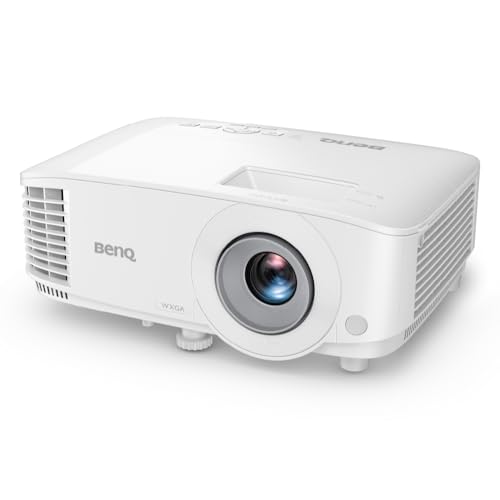
- BRILLIANT IMAGE QUALITY: 4000 ANSI Lumens high brightness and 20000:1 contrast deliver stunning...
- FAST TRANSMISSION: HDMI provides faster data transmission.
- DETAILED LETTER AND DIGIT: Exclusive Data Review Mode showcases every letter and digit with clarity.
Can I use a higher resolution laptop with an old low-resolution projector?
Yes, but you must set your laptop to output at the projector’s native resolution. If you let the laptop run at a higher resolution, the projector will blur everything.
I use the duplicate display mode on Windows or mirror mode on Mac. This forces both screens to use the same resolution and gives me the sharpest text possible.
What is the best projector for a bright conference room with lots of windows?
For bright rooms, you need at least 4000 ANSI lumens of brightness. Lower brightness projectors make text look washed out and hard to read against sunlight.
For my own bright conference room, what I grabbed for clear text even with the lights on is this 4000-lumen business projector. The 3LCD technology also gives better color accuracy for charts.
- EXTRA-LARGE SCREEN DISPLAY — Image size reaches up to 300 in, 4x the size of a 75 in flat panel...
- ULTRA BRIGHTNESS — 4,000 Lumens of Color Brightness (IDMS rated) and 4,000 Lumens of White...
- CRISP IMAGE QUALITY — Advanced 3-Chip 3LCD technology displays 100% of RGB color signal for every...
Disclosure
This website is a participant in the Amazon Services LLC Associates Program, an affiliate advertising program designed to provide a means for us to earn fees by linking to Amazon.com and affiliated sites.