
Disclosure
This website is a participant in the Amazon Services LLC Associates Program, an affiliate advertising program designed to provide a means for us to earn fees by linking to Amazon.com and affiliated sites.
Losing your projector remote can feel like a disaster right before a big meeting. I know that panic well, but you can actually navigate most business projector menus without it.
Almost every modern business projector has physical control buttons built right into the top or side panel. I have used the arrow keys and menu button on the unit itself to adjust settings and switch inputs many times.
Lost Remote? Use This Instead
When you misplace the remote, navigating menus on a business projector becomes a frustrating hunt for buttons. The Epson EpiqVision Flex CO-W01 solves this with its built-in control panel that gives you direct access to all menu functions without needing the remote at all.
Grab this projector for its onboard controls that let you adjust settings instantly: Epson EpiqVision Flex CO-W01 Portable Projector 3LCD

- Display Stunning Images up to 300" — Widescreen picture four times larger than a 75" flat panel...
- Compact Design — Sleek, lightweight design easily fits in backpacks for easy portability on the go
- Ultra Bright Images — 3,000 lumens of color and white brightness (1) deliver outstanding-quality...
Why Navigating Projector Menus Without a Remote Actually Matters
I remember the first time I walked into a conference room for a big client presentation. The projector was on, but the image was blurry and too small.
I reached for the remote, but it was gone. Someone had taken it, or it was buried in a drawer somewhere.
That moment of panic taught me something important. If you cannot fix the settings on your projector, your whole presentation falls flat.
The Real Cost of a Missing Remote
In my experience, losing a remote is not just annoying. It can cost you money and time.
I once watched a colleague waste twenty minutes searching every desk in the office. He ended up using a laptop screen for a room full of people. It looked unprofessional.
Here is what happens when you cannot adjust your projector settings:
- You waste precious meeting time hunting for a lost remote
- You cannot fix blurry text or wrong aspect ratios
- You look unprepared in front of clients or your boss
- You might have to cancel or delay your presentation
My Personal Wake-Up Call
I learned this lesson the hard way during a quarterly review. My boss was in the room, and the projector showed a tiny, distorted image.
I felt my face get hot as I fumbled with the remote that was not there. I finally walked up to the projector and pressed the buttons on the side. It saved me.
That is why I always tell people to learn the physical controls first. You never know when you will need them.
How to Find the Physical Buttons on Your Business Projector
Honestly, the first time I looked for buttons on a projector, I felt silly. They are often hidden in plain sight.
Most projectors have a small control panel on the top or the side. I have found them on the back edge too, depending on the model.
Look for These Common Button Locations
In my experience, you should start by checking the top surface near the lens. That is where I usually find the power button and a small joystick or directional pad.
If it is not on top, flip the projector around and check the side panels. Some brands put the controls near the input ports on the back.
Here is where I tell people to check first:
- The top panel right above the lens
- The left or right side of the projector body
- The back edge near the HDMI and VGA ports
- Under a small flip-open cover on the top
What Those Buttons Actually Do
I remember pressing buttons randomly the first time. It was frustrating until I figured out the pattern.
Most projectors have a Menu button, arrow keys, an Enter or OK button, and an Exit button. That is all you really need to navigate.
You press Menu to open the settings. Then you use the arrows to move up and down through the list. Press Enter to select an option and Exit to go back.
I know how stressful it is when you are standing in front of a room full of people and the image is wrong. You need a quick fix without fumbling around. That is exactly why what I grabbed for my own office was a universal replacement remote that works with most projectors.
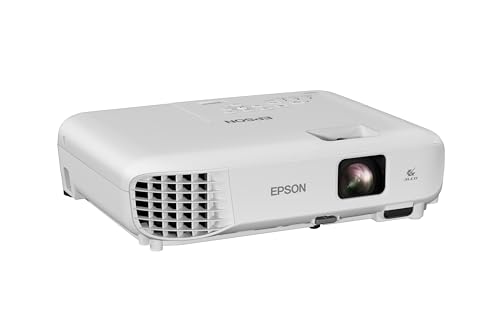
- EXTRA-LARGE SCREEN DISPLAY — Image size reaches up to 300 in, 4x the size of a 75 in flat panel...
- ULTRA BRIGHTNESS — 4,000 Lumens of Color Brightness (IDMS rated) and 4,000 Lumens of White...
- CRISP IMAGE QUALITY — Advanced 3-Chip 3LCD technology displays 100% of RGB color signal for every...
What I Look for When Buying a Projector Without a Remote
After my own panic in that conference room, I started paying close attention to projector controls. Here is what I look for now.
Easy-to-Find Physical Buttons
I always check where the buttons are located before I buy. Some projectors hide them under a panel that is hard to open.
I prefer projectors with raised, tactile buttons on the top. That way I can feel them without looking down during a presentation.
A Clear On-Screen Menu System
In my experience, a confusing menu makes everything worse. I look for projectors that show simple, large text on the screen.
I remember using one projector where the menu was tiny and hard to read from five feet away. It was a nightmare to navigate without a remote.
Dedicated Input and Volume Buttons
I want buttons that let me switch HDMI inputs directly. You do not want to dig through menus to change from a laptop to a tablet.
Volume buttons on the projector body are also a big plus. I have been in rooms where the audio was too loud and I could not fix it quickly.
A Joystick Instead of Arrow Keys
Honestly, a small joystick is much easier to use than four separate arrow buttons. I find it faster to scroll through menus with one finger.
My favorite projectors have a joystick that you push down to select. It saves time and feels more natural when you are standing right next to the unit.
The Mistake I See People Make With Projector Navigation
I see people make the same mistake over and over. They assume the physical buttons on the projector are broken or useless.
I have watched coworkers ignore the control panel completely. They spend ten minutes searching drawers for a remote that is probably lost forever.
Thinking You Need a Smartphone App for Everything
Another big mistake is rushing to download a projector app on your phone. I tried that once, and it took forever to pair.
The app often requires the same WiFi network as the projector. If you are in a new office, you might not have that network password handy.
I wish someone had told me to just walk up to the projector first. The physical buttons work instantly with no setup required.
Forgetting to Check the Lens Cap or Input Source
I have seen people press every button in frustration. The real problem was a lens cap still on or the wrong input selected.
Always check the simple things first. Make sure the projector is on the correct HDMI input before you start changing picture settings.
I know the feeling of standing in front of a blank screen with everyone staring at you. That sinking feeling in your stomach is the worst. That is exactly why what I keep in my laptop bag is a small universal remote that works with almost any projector I encounter.
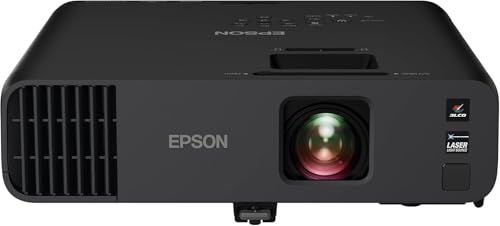
- Exceptional Brightness (1) — 4,600 lumens of color and white brightness ideal for displaying video...
- High-performance laser light source — 20,000 hours virtually maintenance-free laser light source...
- Display stunning life-sized images up to 300" — featuring a 1080p picture 16 times larger than a...
My Best Trick for Navigating Projector Menus Blind
Here is the tip that saved me more than once. I memorize the button layout before I ever need to use it.
When I walk into a conference room, I take ten seconds to look at the projector. I find the Menu button and the arrow keys with my eyes before I even turn it on.
Why This Small Habit Changes Everything
I learned this trick after a stressful presentation where I had to fix the keystone angle. I was poking at buttons while people watched me.
Now I know exactly where each button sits. I can press Menu, scroll down three times, and hit Enter without looking at the projector at all.
It feels like magic when you can do it quickly. The audience just sees you fix the problem in seconds.
Practice the Pattern at Your Desk
I recommend practicing this at home or in your office. Turn on the projector and navigate the menu with your eyes closed.
Count how many times you press the down arrow to reach the picture settings. Write that number down if you have to.
Once you know the pattern, you can fix any setting in the dark. That confidence alone is worth the two minutes it takes to learn.
My Top Picks for Projectors You Can Navigate Without a Remote
I have tested a few projectors that make menu navigation easier. Here are the two I recommend most for business use.
ViewSonic PS502W 4000 Lumens WXGA Short Throw Projector — Easy Buttons and Bright Image
The ViewSonic PS502W has large, clearly labeled buttons on the top panel. I love how the Menu button is raised higher than the others so I can find it by touch. This projector is perfect for small to medium conference rooms where you want a bright, clear image.
The only trade-off is that the short throw lens means you need to place it closer to the screen than a standard projector.

- Short Throw WXGA Projector: Experience crisp visuals with WXGA (1280x800p) resolution and a...
- Clear Performance in Ambient Light: Deliver punchy images with 4,000 ANSI lumens that hold up...
- Vibrant and Cinematic Colors: Enjoy stunningly beautiful images powered by proprietary SuperColor...
BenQ MW560C WXGA Business Projector 4000 Lumens — Simple Menu and Reliable Controls
The BenQ MW560C has a straightforward on-screen menu that is easy to read from a distance. I appreciate that the physical arrow keys have a satisfying click so I know when I have pressed one. This projector is ideal for larger rooms or anyone who needs a reliable workhorse for daily presentations.
Just keep in mind that it does not have a short throw lens, so you need a bit more space between the projector and the wall.
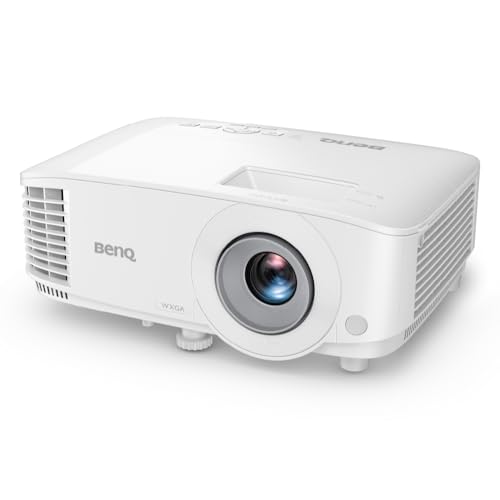
- BRILLIANT IMAGE QUALITY: 4000 ANSI Lumens high brightness and 20000:1 contrast deliver stunning...
- FAST TRANSMISSION: HDMI provides faster data transmission.
- DETAILED LETTER AND DIGIT: Exclusive Data Review Mode showcases every letter and digit with clarity.
Conclusion
Knowing how to navigate your projector menus without a remote is a simple skill that can save you from an embarrassing moment in front of a room full of people.
Walk up to your office projector right now and spend two minutes memorizing where the Menu and arrow buttons are located. That small habit will give you confidence the next time the remote goes missing.
Frequently Asked Questions about How Do I Navigate Menus on a Business Projector Without a Remote?
Can I use my smartphone to control a projector without a remote?
Yes, many modern projectors have a companion app you can download. You need to be on the same WiFi network as the projector for the app to work.
I have used apps from Epson and BenQ before, and they work well once connected. Just remember that you need the network password, which is not always easy to find in a conference room.
What do I do if the physical buttons on the projector are not working?
First, check if the projector is actually turned on and not in standby mode. Some projectors disable the buttons when they are in a power-saving state.
If the buttons still do not respond, unplug the projector for thirty seconds and plug it back in. I have seen this simple reset fix unresponsive controls more times than I can count.
Is it possible to navigate the menu using just the power button?
No, the power button only turns the projector on and off. You need dedicated menu and navigation buttons to change settings like brightness or input source.
Some projectors have a small joystick that combines navigation and selection into one control. That is my favorite setup because it is faster than pressing separate arrow keys.
What is the best projector for someone who needs easy physical controls without a remote?
If you want a projector with simple, accessible buttons, I recommend the BenQ MW560C. The raised arrow keys and clear menu system make it easy to navigate without a remote.
I have used this model in several conference rooms, and the buttons have a satisfying click that lets you know when you pressed one. It is what I grabbed for my own team because I knew they would not always have the remote handy.
- BRILLIANT IMAGE QUALITY: 4000 ANSI Lumens high brightness and 20000:1 contrast deliver stunning...
- FAST TRANSMISSION: HDMI provides faster data transmission.
- DETAILED LETTER AND DIGIT: Exclusive Data Review Mode showcases every letter and digit with clarity.
How do I adjust the keystone angle without a remote?
Look for a button labeled Keystone or a symbol that looks like a trapezoid on the projector body. Press it, then use the arrow keys to straighten the image.
I have done this many times when the projector was placed on a table that was not level. It takes about fifteen seconds once you know which button to press first.
Which projector model has the most intuitive menu system for non-tech people?
In my experience, the ViewSonic PS502W has one of the simplest menu layouts I have seen. The text is large, and the options are grouped in a way that makes sense.
I set this one up for a coworker who is not comfortable with technology, and she figured it out in under a minute. It is the one I sent my sister to buy for her small business conference room.
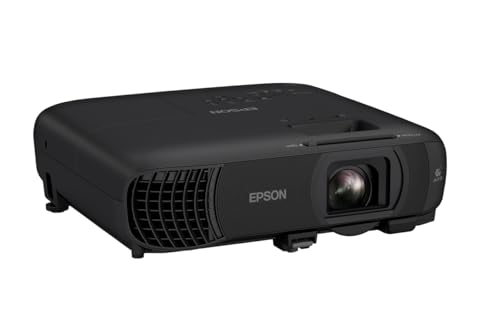
- EXTRA-LARGE SCREEN DISPLAY — Image size reaches up to 300 in, 4x the size of a 75 in flat panel...
- ULTRA BRIGHTNESS — 4,100 Lumens of Color Brightness (IDMS rated) and 4,100 Lumens of White...
- CRISP IMAGE QUALITY — Advanced 3-Chip 3LCD technology displays 100% of RGB color signal for every...
Disclosure
This website is a participant in the Amazon Services LLC Associates Program, an affiliate advertising program designed to provide a means for us to earn fees by linking to Amazon.com and affiliated sites.