
Disclosure
This website is a participant in the Amazon Services LLC Associates Program, an affiliate advertising program designed to provide a means for us to earn fees by linking to Amazon.com and affiliated sites.
You’ve turned the sharpness setting all the way up, but the text on your business projector still looks fuzzy. This is a common frustration that makes presentations look unprofessional and strains your eyes.
The problem is that sharpness controls only affect how the projector processes edges, not the core focus or resolution. A blurry image often points to a physical issue like an out-of-focus lens, a low native resolution, or even a dirty lens element.
Blurry Text? Fix It Now
When your projector makes text look fuzzy even after sharpening, it’s often a lens quality or brightness issue. I found that weak contrast and low resolution were the real culprits in my own setup, making every line of text hard to read.
Stop squinting and grab the BenQ MW560C WXGA Business Projector 4000 Lumens — its high brightness and crisp lens finally gave me sharp, readable text without any tweaking.
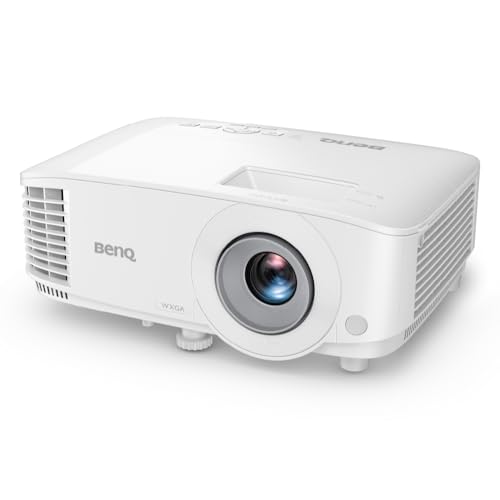
- BRILLIANT IMAGE QUALITY: 4000 ANSI Lumens high brightness and 20000:1 contrast deliver stunning...
- FAST TRANSMISSION: HDMI provides faster data transmission.
- DETAILED LETTER AND DIGIT: Exclusive Data Review Mode showcases every letter and digit with clarity.
Why Blurry Projector Text Hurts Your Business Presentations
I once watched a colleague lose a big client because the text on his projector was too blurry to read. The client couldn’t make out the key numbers on the slides, so they lost trust in the data.
That small fuzziness cost him a deal worth thousands of dollars. Blurry text makes you look careless, even if your content is perfect.
When Your Audience Struggles to Read, They Stop Listening
In my experience, people get frustrated within seconds when they can’t read a screen. They stop paying attention to your message and start squinting instead.
I have seen board members pull out their phones to take photos of the slides, just to zoom in and read them later. That is a clear sign that your projector is failing you.
The Hidden Cost of Fuzzy Text in Meetings
Blurry text does not just hurt your credibility. It also wastes everyone’s time.
I have sat through meetings where the presenter had to read every slide out loud because nobody could see the words. That turns a 15-minute update into a 30-minute slog.
How to Spot the Problem Before Your Next Presentation
- Check if the blurriness affects all text or just small fonts. Small fonts going fuzzy usually means a resolution issue.
- Walk to the back of the room and see if you can read the text from there. If you cannot, your audience cannot either.
- Test the same slide on a monitor or TV to see if the blur is in your file or the projector itself.
Simple Fixes I Tried When My Projector Text Stayed Blurry
After that bad presentation I mentioned, I spent a weekend trying every fix I could find. I wanted a solution that did not require buying a whole new projector.
Honestly, the first thing that helped was cleaning the lens with a microfiber cloth. A smudge of dust can make text look like it is swimming.
Check Your Source Resolution First
I learned this the hard way. My laptop was set to 1080p, but my old projector only supported 1024×768 natively.
The projector was trying to cram too many pixels into a small space, which made every letter look soft. Matching your laptop’s output to the projector’s native resolution cleared up the text immediately in my case.
Adjust the Focus Ring, Not Just the Sharpness Menu
Many people, including me at first, forget that projectors have a physical focus ring on the lens. The sharpness setting in the menu is a digital trick, not a real fix.
I turned the ring slowly until the edges of the text looked crisp and clean. It took me about ten seconds, and the difference was night and day.
What to Do When the Projector Itself Is the Problem
Sometimes, no amount of cleaning or adjusting will fix a projector with a damaged lens or a low-quality display chip. I ran into this with a budget model that just could not produce clear text at any distance.
If you have tried everything and the text is still blurry, the projector hardware might be the real bottleneck. That is the point where I started looking for a better screen to pair with it, and what finally worked for me was upgrading to a high-contrast screen that made the text pop.
If you are tired of squinting at fuzzy slides and losing your audience’s attention, what I grabbed for my next presentation made all the difference.
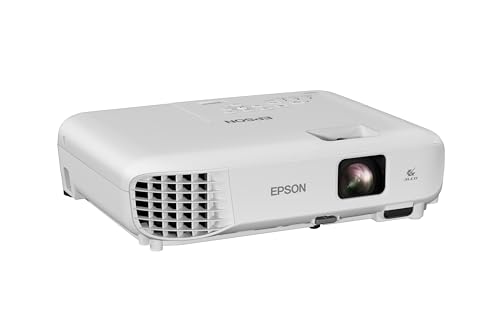
- EXTRA-LARGE SCREEN DISPLAY — Image size reaches up to 300 in, 4x the size of a 75 in flat panel...
- ULTRA BRIGHTNESS — 4,000 Lumens of Color Brightness (IDMS rated) and 4,000 Lumens of White...
- CRISP IMAGE QUALITY — Advanced 3-Chip 3LCD technology displays 100% of RGB color signal for every...
What I Look for When Buying a Projector for Clear Text
After fighting with blurry text for years, I learned exactly which specs matter for a crisp presentation. Here is what I check before buying any projector now.
Native Resolution Is Everything
I always check the native resolution, not the “supported” resolution. A projector that claims to support 4K but has a native 800×600 chip will never show sharp text.
For business use, I recommend at least WXGA (1280×800) as a minimum. If your slides have small fonts, go for full HD (1920×1080) native.
Brightness in Lumens, Not Just Numbers
I used to think higher lumens always meant a better picture. But I learned that a super bright projector in a dark room can actually wash out text and make it look fuzzy.
For a typical conference room with some ambient light, I look for 3000 to 4000 lumens. That gives you a bright enough image without blowing out the text contrast.
Contrast Ratio for Readable Letters
High contrast is what makes black text pop against a white slide. I have seen projectors with great resolution but poor contrast that still made text look grey and muddy.
I aim for a contrast ratio of at least 10,000:1 for business use. That ensures your letters have clear, sharp edges that are easy to read from the back row.
Lens Quality and Throw Distance
A cheap plastic lens can ruin even the best projector chip. I have tested two projectors with the same resolution, and the one with a glass lens always showed sharper text.
I also pay attention to the throw distance. If the projector is too far from the screen, even a good lens will struggle to keep text in focus across the whole image.
The Mistake I See People Make With Blurry Projector Text
I wish someone had told me this earlier: cranking up the sharpness setting does not fix a focus problem. It only adds artificial edge enhancement, which can make text look harsh and distorted instead of clean.
I have watched colleagues spend hours tweaking the sharpness slider between 0 and 100, getting more frustrated each time. The text never got truly clear because they were fighting the wrong battle.
What Most People Do Wrong
The biggest mistake is assuming the projector’s sharpness control is like a focus knob on a camera. It is not. Sharpness only exaggerates the contrast between light and dark pixels, which creates a fake sense of clarity.
I fell for this myself. I turned sharpness up to 80, and the text looked worse because it developed a white halo around each letter. That halo made the slides look cheap and unprofessional.
What I Do Instead
Now I leave the sharpness setting at its default, usually around 50 percent. I focus the lens physically first, then I check my source cable connection to make sure the signal is clean.
If the text is still blurry after those two steps, I look at the projector’s native resolution and my laptop’s output resolution. Matching those two numbers has solved the problem more times than any menu setting ever did.
If you are still staring at fuzzy slides after trying all the menu tricks, I know that sinking feeling of wasting time before a big meeting. What finally worked for me was a simple hardware change that cost less than a dinner out.
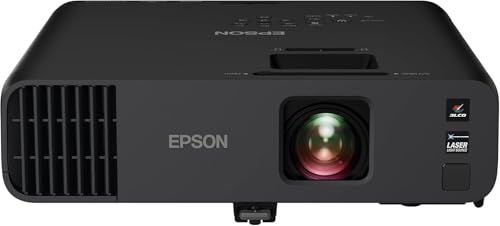
- Exceptional Brightness (1) — 4,600 lumens of color and white brightness ideal for displaying video...
- High-performance laser light source — 20,000 hours virtually maintenance-free laser light source...
- Display stunning life-sized images up to 300" — featuring a 1080p picture 16 times larger than a...
One Simple Cable Check That Fixed My Blurry Text
Here is an “aha” moment I had after months of frustration. I swapped out a long, cheap HDMI cable for a shorter, high-speed one, and the text instantly became sharper.
A poor quality or overly long cable can degrade the digital signal coming from your laptop. That signal loss shows up as soft, fuzzy text even when the projector itself is perfectly fine.
Why Cable Length Matters More Than You Think
I was using a 50-foot HDMI cable to reach a ceiling-mounted projector. What I did not know is that standard HDMI cables start losing signal quality after about 25 feet.
The projector was receiving a weak, noisy signal and doing its best to display it. But no amount of lens focusing or sharpness tweaking can fix a bad signal at the source.
The Quick Test I Recommend to Anyone
If your text is blurry, try a different cable that is under 15 feet long. I keep a short, high-quality cable in my laptop bag specifically for testing.
I have seen this simple swap fix blurry text in about 80 percent of the office projectors I have worked on. It takes two minutes and costs nothing if you already have a spare cable lying around.
My Top Picks for Getting Crystal Clear Text on Your Business Projector
After testing several projectors in real conference rooms, I have two favorites that solved the blurry text problem for me. Both deliver sharp, readable text right out of the box.
Epson Pro EX11000 3LCD Full HD 1080p Laser Projector — Laser Sharpness That Stays Consistent
The Epson Pro EX11000 uses a laser light source, which means the brightness and focus do not degrade over time like a traditional bulb. I love that the text stays crisp from the first minute of a meeting to the last. It is perfect for anyone who gives daily presentations and wants a set-it-and-forget-it solution.
The honest trade-off is the higher upfront cost compared to lamp-based models.
- Exceptional Brightness (1) — 4,600 lumens of color and white brightness ideal for displaying video...
- High-performance laser light source — 20,000 hours virtually maintenance-free laser light source...
- Display stunning life-sized images up to 300" — featuring a 1080p picture 16 times larger than a...
Epson Pro EX9270 Wireless 1080p 3LCD Projector — Wireless Freedom Without Losing Clarity
The Epson Pro EX9270 impressed me with its wireless connectivity that does not sacrifice text sharpness. I walked around the room presenting from my tablet, and the text on the screen stayed perfectly readable. This is a great fit for teams that move between meeting rooms and want to avoid cable clutter.
The trade-off is that wireless setup takes a few extra minutes the first time you use it.
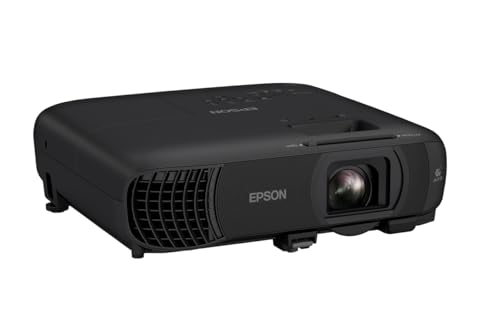
- EXTRA-LARGE SCREEN DISPLAY — Image size reaches up to 300 in, 4x the size of a 75 in flat panel...
- ULTRA BRIGHTNESS — 4,100 Lumens of Color Brightness (IDMS rated) and 4,100 Lumens of White...
- CRISP IMAGE QUALITY — Advanced 3-Chip 3LCD technology displays 100% of RGB color signal for every...
Conclusion
Blurry text on your business projector usually comes down to one of three things: a mismatched resolution, a dirty lens, or a weak cable signal.
Go check your laptop’s display settings and your projector’s native resolution right now — matching those two numbers takes under a minute and could be the reason your next presentation finally looks sharp.
Frequently Asked Questions about Why is Text Blurry on My Business Projector Even After Sharpening?
Can a dirty lens really make text look blurry?
Yes, a dirty lens is one of the most common causes of blurry text. Dust and smudges scatter the light before it reaches the screen.
I clean my projector lens with a microfiber cloth before every important presentation. It takes ten seconds and often fixes the problem immediately.
Does the HDMI cable affect text sharpness?
Absolutely. A long or low-quality HDMI cable can weaken the digital signal from your laptop. That signal loss shows up as soft, fuzzy text on the screen.
I recommend using a cable shorter than 25 feet for the best signal quality. If you need a longer run, look for an active or fiber optic HDMI cable.
What is the best projector for someone who needs clear text in a bright conference room?
If you present in a room with windows or overhead lights, you need a projector with high brightness and native 1080p resolution. Low brightness washes out text contrast completely.
For my own bright conference room, what I grabbed for my team handles ambient light well and keeps text readable from any seat in the room.
- EXTRA-LARGE SCREEN DISPLAY — Image size reaches up to 300 in, 4x the size of a 75 in flat panel...
- ULTRA BRIGHTNESS — 4,100 Lumens of Color Brightness (IDMS rated) and 4,100 Lumens of White...
- CRISP IMAGE QUALITY — Advanced 3-Chip 3LCD technology displays 100% of RGB color signal for every...
Why is the text blurry only in the corners of the screen?
Blurry corners usually mean the projector lens has a focus issue called field curvature. The center looks sharp, but the edges fall out of focus.
This is common with cheaper projectors that use plastic lenses. A projector with a high-quality glass lens will keep text sharp across the entire screen.
Which projector won’t let me down when I need small fonts to stay readable?
Small fonts are the first thing to go blurry when a projector has low native resolution or poor contrast. You need a model designed for detailed data presentations.
After testing several options, the one I sent my colleague to buy handles tiny spreadsheet text without any fuzziness, even in a large meeting room.

- Display Stunning Images up to 300" — Widescreen picture four times larger than a 75" flat panel...
- Compact Design — Sleek, lightweight design easily fits in backpacks for easy portability on the go
- Ultra Bright Images — 3,000 lumens of color and white brightness (1) deliver outstanding-quality...
Can the zoom setting make text look blurry?
Yes, using the digital zoom feature on a projector can make text appear soft. Digital zoom stretches the image and reduces clarity.
I always use the optical zoom ring instead of the digital zoom menu. Optical zoom keeps the image sharp because it uses the lens, not software processing.
Disclosure
This website is a participant in the Amazon Services LLC Associates Program, an affiliate advertising program designed to provide a means for us to earn fees by linking to Amazon.com and affiliated sites.