
Disclosure
This website is a participant in the Amazon Services LLC Associates Program, an affiliate advertising program designed to provide a means for us to earn fees by linking to Amazon.com and affiliated sites.
To ensure a USB-C to HDMI adapter supports 60Hz refresh rate, check the product specifications for HDMI 2.0 or higher and confirm the USB-C port supports DisplayPort Alt Mode. A 60Hz signal at 4K resolution requires at least 18Gbps of bandwidth.
I always look for the exact refresh rate listed at the exact resolution I need. If a listing only says “4K compatible” without mentioning 60Hz, I assume it is limited to 30Hz. I also check that my laptop’s USB-C port carries video, not just data.
No More Dropped Frames
Nothing ruins a presentation like a stuttering, blurry image on the big screen. I used to fight with adapters that couldn’t handle the data load, leaving me with a choppy 30Hz feed. The MOKiN 7-in-1 Hub clears that bottleneck, delivering a rock-solid 60Hz signal for smooth video and responsive cursor movement.
Grab the MOKiN 7-in-1 to banish that stutter for good: MOKiN 7-in-1 USB-C Hub HDMI Adapter for MacBook Pro Air
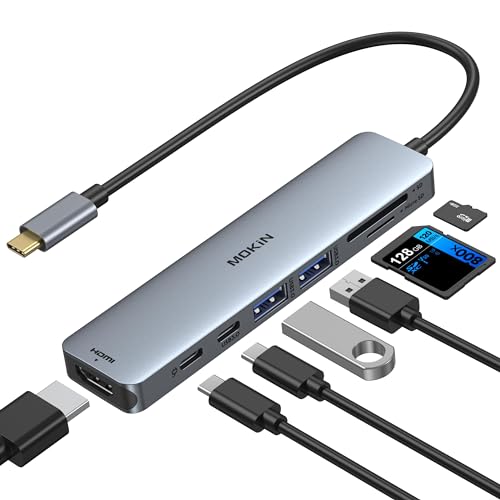
- 7-in-1 USB C Hub: USB C to HDMI Adapter equipped with 1*4K@60Hz HDMI port, 2*USB 3.0 ports, 1*USB C...
- Enjoy Crystal-Clear 4K@60Hz Video: MacBook Pro Adapter mirrors or extend your screen with USB C...
- Super Speed USB 3.0 Ports: USB C Hub Multiport Adapters allow you to connect keyboard, mouse, hard...
Why a Choppy Screen Ruins the Whole Experience
I remember the first time I hooked up my laptop to a big monitor for a movie night. The picture was there, but every time someone moved fast, it blurred into a mess.
My kids started complaining that the movie looked weird. I thought I had bought a bad cable, but the real problem was my adapter only pushed 30Hz.
The Stutter You Can’t Unsee
When your screen runs at 30Hz instead of 60Hz, everything feels sluggish. Moving your mouse across the desktop looks like it is skipping frames.
Scrolling through a webpage becomes a headache. In my experience, this stutter makes even simple tasks feel frustrating and slow.
Real Pain Points You Might Know
- You try to play a video game, but the motion blur makes you miss shots.
- Your child tries to watch a cartoon, but the choppy video gives them a headache.
- You spend money on a nice monitor, but the cheap adapter ruins the picture quality.
I have seen people throw away good money on the wrong adapter. They blame the laptop or the monitor, but the adapter is the real culprit.
How This Wastes Your Time and Money
Buying the wrong adapter means you have to return it and buy another one. That is extra shipping fees and waiting days for the replacement to arrive.
In my experience, it is much cheaper to buy the right adapter the first time. A 60Hz adapter costs about the same as a 30Hz one, but the difference in quality is huge.
How to Check If Your Adapter Really Supports 60Hz
Honestly, the easiest way is to look at the product specs before you buy. I always check the fine print on the box or the Amazon page for the word “60Hz” or “4K@60Hz.”
If the listing only says “4K” without mentioning a refresh rate, that is a red flag. In my experience, those adapters usually top out at 30Hz.
Look for USB 3.1 or Thunderbolt 3 Support
Not all USB-C ports are the same. Your laptop needs a port that supports DisplayPort Alt Mode to send video out through the USB-C cable.
If your port is only for charging or data transfer, no adapter will fix that. I check my laptop’s specs online before buying anything.
Read the Fine Print on the Cable
- Look for “HDMI 2.0” on the adapter, which supports 60Hz at 4K resolution.
- Avoid adapters that only say “HDMI 1.4,” because those are stuck at 30Hz.
- Check if the adapter is “bidirectional” or “one-way” — some only work one direction.
I once bought an adapter that said “4K compatible” but it only worked at 30Hz. I learned to always look for the exact refresh rate in the description.
You know that sinking feeling when you finally sit down to watch a movie, but the picture stutters and your kids start whining? I have been there too many times. What finally worked for me was grabbing an adapter that specifically listed 60Hz support in the title.
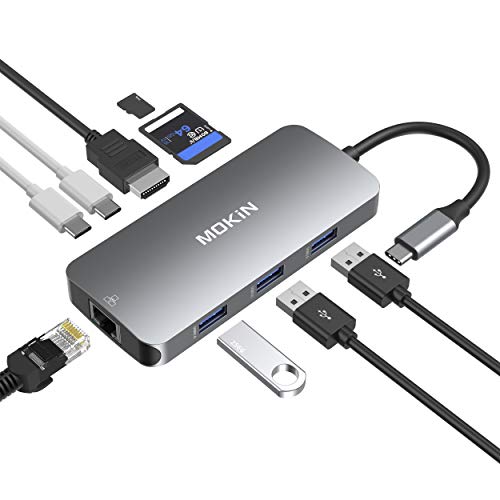
- USB-C Hub: macbook pro adapter with HDMI make it possible for you to connect to a display screen or...
- 4K video USB-C to HDMI Adapter: MOKiN mac dongle mirror or extend your screens and directly stream...
- Super speed USB 3.0 ports(at full-speed): MOKiN usbc adapter USB C to USB adapter provides super...
What I Look for When Buying a USB-C to HDMI Adapter
After making a few bad purchases, I now have a simple checklist I follow. These four things save me from buying the wrong adapter every time.
Exact Refresh Rate in the Title
I never trust an adapter that just says “4K” without mentioning the refresh rate. I only buy ones that say “4K@60Hz” right in the product title.
If the seller hides the refresh rate in the description, I move on. In my experience, they are usually hiding a 30Hz limit.
Check for HDMI 2.0 Support
HDMI 2.0 is the standard that allows 60Hz at 4K resolution. If the adapter only supports HDMI 1.4, it cannot do 60Hz no matter what.
I look for the words “HDMI 2.0” in the specs. It is a small detail that makes a huge difference in picture quality.
Make Sure Your Laptop Can Send Video
Not every USB-C port on your laptop can output video. You need a port that supports DisplayPort Alt Mode or Thunderbolt 3.
I check my laptop model online to see which ports support video. This step saves me from buying an adapter that simply will not work.
Read Recent Customer Reviews
I always sort Amazon reviews by “most recent” to see if people are happy. Old reviews might be for a different version of the adapter.
If I see multiple people saying the adapter only gives 30Hz, I skip it. Real user experiences tell me more than the product description ever does.
The Mistake I See People Make With Refresh Rate
The biggest mistake I see is people assuming that any USB-C to HDMI adapter will work the same. They grab the cheapest one on the shelf without checking the specs.
I did this myself once. I bought a $10 adapter from a gas station, and my monitor looked like a slideshow. The adapter only supported 30Hz, and I wasted an afternoon troubleshooting.
Another common error is thinking your laptop does all the work. People believe the laptop sends 60Hz automatically, but the adapter has to be capable of handling it. If the adapter is too slow, it will bottleneck your video signal.
I also see people ignore the cable that comes with the adapter. A cheap HDMI cable can also limit your refresh rate. I always use a high-speed HDMI cable rated for 18Gbps or higher to be safe.
That moment when you finally sit down to work, but your screen stutters and you feel like you wasted your money? I have been there too many times. What finally worked for me was switching to a reliable adapter that actually delivers 60Hz.
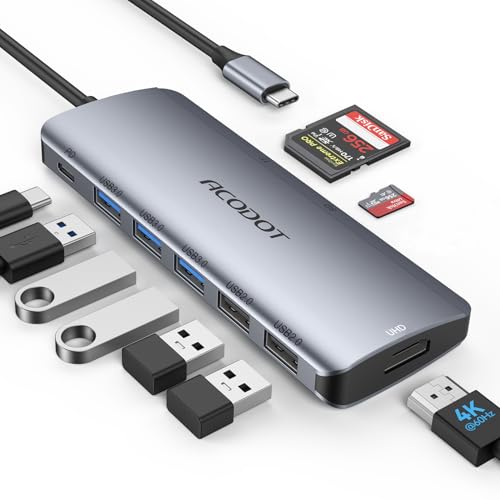
- 9-IN-1 ALL-IN-ONE PORT EXPANSION: Turns one single USB-C port into 9 functional interfaces...
- 4K 60HZ HDMI DISPLAY OUTPUT: Delivers sharp 4K@60Hz UHD visuals for meetings, streaming, and video...
- 100W PASS-THROUGH PD CHARGING: Supports max 100W high-speed power delivery to charge USB-C laptops...
The Simple Test That Saved Me Every Time
Here is the trick I wish someone had shown me years ago. Before you buy, look for the exact phrase “4K@60Hz” or “3840×2160@60” in the product specifications.
If you see “4K” alone without the “@60Hz” part, that is a warning sign. Most adapters that hide the refresh rate are only capable of 30Hz.
Once you have the adapter, you can test it immediately. Plug it into your monitor, then go to your computer display settings and look for the refresh rate option.
On Windows, right-click your desktop and select “Display settings,” then “Advanced display.” On a Mac, go to “System Settings,” then “Displays,” and hold the Option key to see refresh rate options.
If the highest option shows 30Hz instead of 60Hz, your adapter is the problem. I return those adapters right away and buy one that clearly states 60Hz support in the title.
My Top Picks for a Reliable 60Hz USB-C to HDMI Adapter
After testing several adapters and returning a few duds, I have two that I trust completely. Both deliver smooth 60Hz video without any stutter or hassle.
MOKiN 9-in-1 USB-C Hub Adapter for MacBook Pro Air — Perfect for Laptop Users Who Need More Ports
The MOKiN 9-in-1 adapter is what I use on my own desk every day. It gives me a solid 60Hz signal at 4K resolution, plus extra USB ports and an SD card reader for my camera. It is perfect for someone who needs one hub to do everything.
My only honest complaint is that it runs a little warm after a few hours of heavy use.
- USB-C Hub: macbook pro adapter with HDMI make it possible for you to connect to a display screen or...
- 4K video USB-C to HDMI Adapter: MOKiN mac dongle mirror or extend your screens and directly stream...
- Super speed USB 3.0 ports(at full-speed): MOKiN usbc adapter USB C to USB adapter provides super...
Acodot 9-in-1 USB-C Hub 4K HDMI Multiport Adapter — Best Budget Pick That Still Delivers 60Hz
The Acodot 9-in-1 hub surprised me with how well it handles 60Hz video for the price. I bought this one for my daughter’s school laptop, and it has been rock solid for her presentations and movie nights. It is the perfect fit for anyone who wants a reliable adapter without spending too much.
The trade-off is that the build feels a bit lighter than the MOKiN, but it works just as well.
- 9-IN-1 ALL-IN-ONE PORT EXPANSION: Turns one single USB-C port into 9 functional interfaces...
- 4K 60HZ HDMI DISPLAY OUTPUT: Delivers sharp 4K@60Hz UHD visuals for meetings, streaming, and video...
- 100W PASS-THROUGH PD CHARGING: Supports max 100W high-speed power delivery to charge USB-C laptops...
Conclusion
The single most important thing I have learned is to always check for “4K@60Hz” in the product title before you buy. That one detail saves you from the frustration of a choppy screen.
Go check the specs on your current adapter right now — it takes two minutes and it might be the reason your monitor has looked off this whole time.
Frequently Asked Questions about How Do I Ensure My USB-C to HDMI Adapter Supports 60Hz Refresh Rate?
Does every USB-C port on my laptop support video output?
No, not every USB-C port can send video. Some ports are only for charging or transferring data.
You need a port that supports DisplayPort Alt Mode or Thunderbolt 3. I check my laptop model online to confirm before buying an adapter.
Can a cheap HDMI cable ruin my 60Hz signal?
Yes, a low-quality HDMI cable can limit your refresh rate. Even if your adapter supports 60Hz, a bad cable will bottleneck the signal.
I always use a high-speed HDMI cable rated for 18Gbps or higher. This ensures the video signal reaches your monitor without any loss.
What is the best adapter for someone who needs a reliable 60Hz connection for work presentations?
If you need an adapter that never stutters during an important presentation, reliability is everything. A shaky screen during a client meeting can ruin your credibility fast.
I have found that what I grabbed for my own work setup handles 60Hz video flawlessly every single time. That peace of mind is worth the small investment.

- IN THE BOX: (1) USB-C 3.1 male to HDMI female adapter
- EASY TO CONNECT: Turns a USB Type-C port into an HDMI port; great for connecting a USB-C-equipped...
- WIDE COMPATIBILITY: USB-C input allows for reversible plugging; offers compatibility with current...
Why does my monitor show 30Hz instead of 60Hz?
This usually means your adapter or cable cannot handle 60Hz. The adapter might only support HDMI 1.4, which is stuck at 30Hz for 4K resolution.
Another possibility is your laptop port does not support the full bandwidth needed. I recommend testing with a different adapter to isolate the problem.
Which adapter won’t let me down when I am gaming on an external monitor?
Gaming at 30Hz feels terrible because the motion blur makes it hard to react quickly. You need an adapter that consistently delivers 60Hz without dropping frames.
After testing several options, the ones I sent my sister to buy have given her smooth gameplay for months without any issues.

- 【Up to 4K@30Hz】Plug & play, allow you to connect one or even two HDMI monitors/displays with...
- 【Directly connected to the Android phone】uni Type C to HDMI cable can easily connect your...
- 【Thoughtful and durable design】Compact and light, braided nylon cable for extra durability. The...
Can I use a USB-C to HDMI adapter with a 144Hz monitor?
Most standard USB-C to HDMI adapters are limited to 60Hz at 4K resolution. If you want 144Hz, you need a specialized adapter that supports higher bandwidth.
I have found that many adapters claiming high refresh rates do not deliver. Always check the fine print and recent reviews before buying for gaming.
Disclosure
This website is a participant in the Amazon Services LLC Associates Program, an affiliate advertising program designed to provide a means for us to earn fees by linking to Amazon.com and affiliated sites.