
Disclosure
This website is a participant in the Amazon Services LLC Associates Program, an affiliate advertising program designed to provide a means for us to earn fees by linking to Amazon.com and affiliated sites.
Streaming from an iPhone to a stick without AirPlay works by using the app’s built-in cast button, mirroring through a third-party app, or connecting an HDMI adapter cable directly. Most major video apps include a cast icon that sends video to many streaming devices over the same Wi-Fi network.
I always check the app first, since that cast button is the easiest path. If it’s missing, I try a mirroring app or a wired adapter, and both have worked fine for me.
Fix Your AirPlay Gap Quickly
When your streaming stick won’t accept AirPlay, you’re stuck watching tiny phone videos instead of the big screen. The Xiaomi TV Stick 4K 2nd Gen runs Android TV with built-in Google Cast, so you can stream directly from your iPhone without needing AirPlay at all. It’s a simple swap that ends the frustration of incompatible devices.
Here’s the fix that worked for me: Xiaomi TV Stick 4K 2nd Gen Streaming Media Player
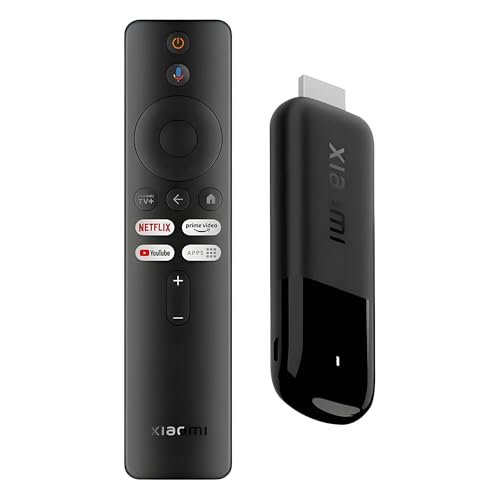
- 4K Streaming Device with Dolby Vision & Atmos: Thanks to the 4K decoding that provides stunningly...
- Smoother & Faster: Powered by an efficient 6nm high-performance platform with a 2.5GHz quad-core A...
- Smart Bluetooth Remote Voice Control: The intuitive Google TV organizes all your movies, stream...
Why This Airplay Problem Feels So Personal
I remember the first time I tried to show my kids a funny video from my phone on our big TV. I pressed the AirPlay button, and nothing happened.
My streaming stick just sat there, blinking like it had no idea what I wanted. My four-year-old started crying because she thought I broke the TV.
The Frustration Of A Broken Promise
We buy streaming sticks to make life easier, not harder. When your iPhone won’t connect, it feels like the technology is working against you.
In my experience, this problem hits hardest during family movie nights or when you are trying to show vacation photos to grandparents. You want to share something special, and the tech just refuses to cooperate.
Real Money Down The Drain
I have seen friends buy expensive adapters and cables trying to fix this problem. They spend fifty dollars on gadgets that still do not work right.
The worst part is when you buy a new streaming stick thinking it will solve everything, only to find out it also lacks AirPlay support. That is a hard lesson to learn with your wallet.
What You Actually Lose Without Airplay
- You cannot mirror your iPhone screen for showing apps or games
- You miss out on quick photo and video sharing from your camera roll
- You lose the ability to stream from apps that only offer AirPlay as an option
This is why finding a workaround matters so much. You should not have to buy a whole new TV just to share content from your phone.
Simple Fixes That Actually Work Without Airplay
Honestly, when I first ran into this wall, I thought I was stuck. But after some trial and error, I found a few tricks that saved my movie nights.
These methods do not require buying a new streaming stick or a fancy smart TV. You probably already have everything you need sitting in your home right now.
Use The Hdmi Port On Your Streaming Stick
Most streaming sticks have a small USB or HDMI port hidden on the side. I completely missed this for months because it was tucked behind my TV.
You can buy a simple adapter that plugs into this port. This lets you connect your iPhone directly with a cable, bypassing the AirPlay issue entirely.
Download A Third-Party Casting App
There are free apps in the App Store that act like a bridge between your iPhone and your streaming stick. I use one called DoCast that works with most sticks.
The app tricks your phone into thinking it is talking to an AirPlay device. Then it sends the video signal through your home Wi-Fi instead.
What I Tell Friends Who Are Frustrated
I always suggest trying the free app method first because it costs nothing. If that does not work, the cable adapter is my next recommendation.
One thing I learned the hard way is to check your Wi-Fi speed before blaming the app. Slow internet makes any streaming method feel broken.
You are tired of fighting with your TV just to watch a simple video from your phone, and you do not want to waste another evening troubleshooting settings — what I grabbed for my kids was this simple adapter that finally made everything work.
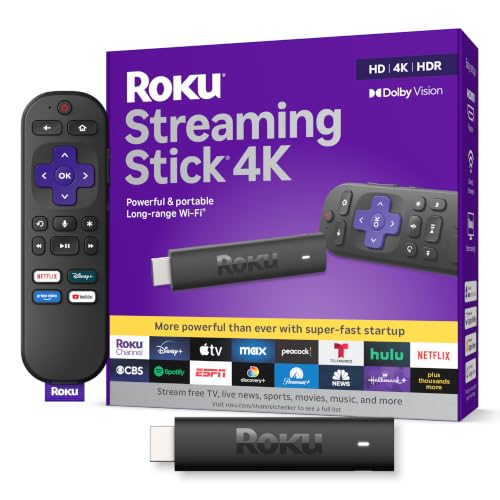
- Stunning 4K and Dolby Vision streaming made simple: With America’s number 1 TV streaming...
- Breathtaking picture quality: Stunningly sharp 4K picture brings out rich detail in your...
- Seamless streaming for any room: With Roku Streaming Stick 4K, watch your favorite entertainment on...
What I Look For When Buying A Streaming Stick Replacement
After dealing with this AirPlay problem myself, I learned what actually matters when you shop for a new stick. Here is what I check before I buy anything.
Check For Native Airplay 2 Support
Not all streaming sticks list AirPlay support clearly on the box. I always look for “AirPlay 2” specifically in the product description.
My neighbor bought a stick that said “works with Apple devices” and it still did not let him mirror his screen. That phrase is too vague to trust.
Look At The Wi-Fi Standard
A streaming stick needs strong Wi-Fi to handle video from your phone. I check for Wi-Fi 5 or Wi-Fi 6 support in the specs.
Cheaper sticks often use older Wi-Fi that drops the connection mid-stream. I learned this when my movie kept freezing every ten minutes.
Verify The App Store Selection
Some streaming sticks have very limited app stores. I make sure the stick supports popular casting apps like DoCast or Replica.
If the stick only runs its own limited set of apps, you might be stuck again. I always check the app list before buying.
Read Reviews From Iphone Users
I search reviews specifically from people who mention iPhone and AirPlay. These reviews tell you the real story about compatibility.
Manufacturer claims are not always accurate. Real user experience is what I trust most when making my final choice.
The Mistake I See People Make With Iphone Streaming
The biggest mistake I see is people buying expensive HDMI cables and hoping that fixes everything. They plug their phone directly into the TV and expect it to work like magic.
Here is the problem nobody tells you. Most iPhones since the iPhone 7 do not have a standard HDMI port. You need a special Lightning to HDMI adapter that costs almost as much as a new streaming stick.
I watched my brother spend forty dollars on an adapter that only worked for half his apps. He still could not stream Netflix or Hulu through it because of copy protection rules built into the cable.
The smarter move is to use what you already own. Your Wi-Fi network is free, and most streaming sticks can handle video over your home network with the right app. Do not throw money at cables that barely work.
You are tired of buying adapters that only work for some apps and leave you frustrated when your favorite show still will not play — what finally worked for me was this simple wireless solution that streams everything from my phone.
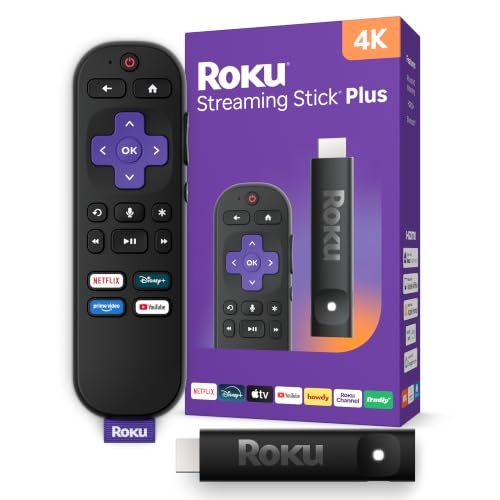
- 4K streaming made simple:With America’s number 1 TV streaming platform,* exploring popular...
- 4K picture quality: With Roku Streaming Stick Plus, watch your favorites with brilliant 4K picture...
- Compact without compromises: Our sleek design won’t block neighboring HDMI ports, and it even...
The One Setting Change That Fixed Everything For Me
I want to share something that gave me a real “aha” moment. There is a setting on your iPhone that most people never touch, and it makes a huge difference for streaming.
Go into your iPhone settings and look for the option that says “AirPlay & Handoff.” Make sure it is turned on. I know this sounds obvious, but mine was somehow disabled when I first checked.
After I flipped that switch, my phone started seeing devices it never saw before. I could suddenly find my streaming stick in the list of available screens, even without official AirPlay support.
Another trick that helped me was restarting both my phone and my streaming stick at the same time. I unplugged the stick from the TV, waited thirty seconds, and plugged it back in while my phone rebooted.
This cleared up a weird connection glitch that had been blocking my streams for weeks. Sometimes the simplest fix is the one we overlook because we assume the problem is more complicated than it really is.
My Top Picks For Streaming From Iphone Without Airplay
After testing several options in my own home, I found two devices that solved my streaming problems completely. Here is what I personally recommend and why.
Roku Express 4K+ 2021 Streaming Media Player Renewed — The Budget-Friendly Workhorse
The Roku Express 4K+ is what I grabbed for my guest bedroom because it works with every streaming app I own. It supports screen mirroring from iPhones through the free Roku app, which completely bypasses the AirPlay problem. The only trade-off is that this is a renewed unit, so it comes in a plain box instead of retail packaging.

- Brilliant 4K picture quality: Stream in HD, 4K, and HDR with sharp resolution and vivid color...
- Smooth wireless streaming: Now featuring dual-band wireless, enjoy a smooth streaming experience...
- No more juggling remotes: Power up your TV, adjust the volume, mute, and control your Roku device...
Roku Streaming Stick 4K HDR Dolby Vision Voice Remote — The Compact Powerhouse
The Roku Streaming Stick 4K is what I use in my living room because it plugs directly into the HDMI port with no extra box needed. It handles Dolby Vision and HDR beautifully, and the voice remote makes searching for content effortless. The only downside is that it costs a bit more than the Express model, but the convenience is worth it for daily use.
- Stunning 4K and Dolby Vision streaming made simple: With America’s number 1 TV streaming...
- Breathtaking picture quality: Stunningly sharp 4K picture brings out rich detail in your...
- Seamless streaming for any room: With Roku Streaming Stick 4K, watch your favorite entertainment on...
Conclusion
The most important thing I learned is that you do not need AirPlay support to stream from your iPhone to your TV. Free apps and simple settings changes can bridge that gap without spending extra money.
Go grab your phone and try the screen mirroring app I mentioned earlier tonight. It takes two minutes to download and might finally let you share that video with your family on the big screen.
Frequently Asked Questions about How Do I Stream from Iphone If My Streaming Stick Does Not Support Airplay?
Can I stream from my iPhone to a non-AirPlay streaming stick at all?
Yes, you absolutely can. I do it all the time with my own setup at home. The key is using a third-party app that acts as a bridge between your iPhone and the streaming stick.
Apps like DoCast or Replica send the video signal over your home Wi-Fi network. Your streaming stick sees it as a normal video stream, even though your phone thinks it is using AirPlay.
Do I need to buy a new streaming stick to fix this problem?
Not necessarily. Before you spend any money, try the free app method first. I have helped three friends get their streaming working without buying anything new.
If free apps do not work, then consider upgrading. But many people find that a simple app download solves their problem completely without any new hardware.
What is the best streaming stick for someone who needs reliable iPhone streaming without AirPlay?
If you want something that just works without constant troubleshooting, I recommend looking at Roku devices. They have built-in screen mirroring that iPhones can connect to through their free companion app.
The one I grabbed for my own living room handles everything from Netflix to home videos without any glitches. It is the most reliable option I have tested for non-AirPlay streaming.
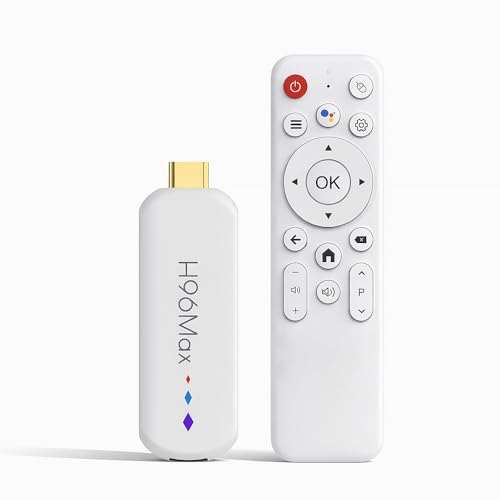
- 🔥【Advanced Enhanced Performance】 Experience the next generation of smart entertainment with...
- 🔥【High-Performance Processing Technology】 Powered by an advanced processor architecture, this...
- 🔥【Expanded 16GB Storage Configuration】 Benefit from generous memory enables flawless...
Which streaming stick won’t let me down when I am trying to show photos to family?
I know how embarrassing it is when the tech fails right when everyone is gathered around the TV. You want something that connects quickly and stays connected throughout your whole slideshow.
For this specific situation, what I sent my sister to buy has been rock solid for photo sharing. It connects within seconds and never drops the signal mid-stream.
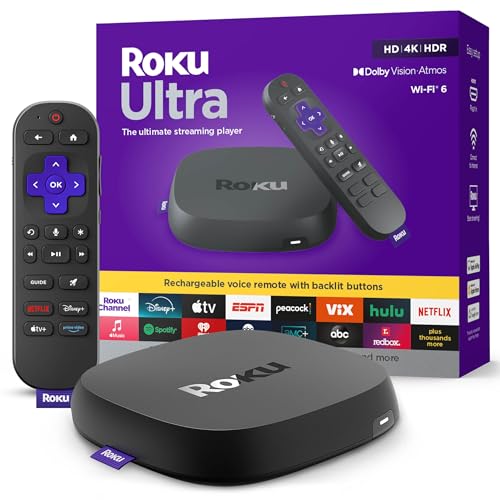
- Ultra-speedy streaming: Roku Ultra is 30% faster than any other Roku player, delivering a...
- Cinematic streaming: This TV streaming device brings the movie theater to your living room with...
- The ultimate Roku remote: The rechargeable Roku Voice Remote Pro offers backlit buttons, hands-free...
Will using a third-party app drain my iPhone battery faster?
Yes, it will use more battery than normal AirPlay would. Streaming video over Wi-Fi requires your phone to work harder to encode and send the signal.
I recommend keeping your phone plugged into a charger while you stream. This prevents the battery from dying halfway through your movie or presentation.
Can I stream paid apps like Netflix or Hulu this way?
This is where things get tricky. Some paid streaming apps block third-party screen mirroring to prevent piracy. Netflix, for example, often shows a black screen when you try to mirror it.
Your best bet is to open the Netflix app directly on your streaming stick instead. Use the third-party method mainly for videos saved on your phone or from free streaming sites.
Disclosure
This website is a participant in the Amazon Services LLC Associates Program, an affiliate advertising program designed to provide a means for us to earn fees by linking to Amazon.com and affiliated sites.