
Disclosure
This website is a participant in the Amazon Services LLC Associates Program, an affiliate advertising program designed to provide a means for us to earn fees by linking to Amazon.com and affiliated sites.
You’ve cranked the sharpness setting to maximum, yet the text on your business projector still looks blurry or jagged. This frustrating problem makes presentations unprofessional and hard to follow.
Many people blame the sharpness control, but it only adjusts edge contrast, not actual resolution. The real culprit is often a mismatch between your source device’s output and the projector’s native pixel grid.
Fix Unreadable Text Instantly
When text looks fuzzy or pixelated on your business projector, even after adjusting sharpness, the root cause is often low resolution or poor contrast. The BenQ MW560C delivers 4000 lumens of bright, clear output with WXGA resolution, making every letter sharp and readable from across the room.
Grab the BenQ MW560C WXGA Business Projector 4000 Lumens and finally see your slides and spreadsheets without squinting.
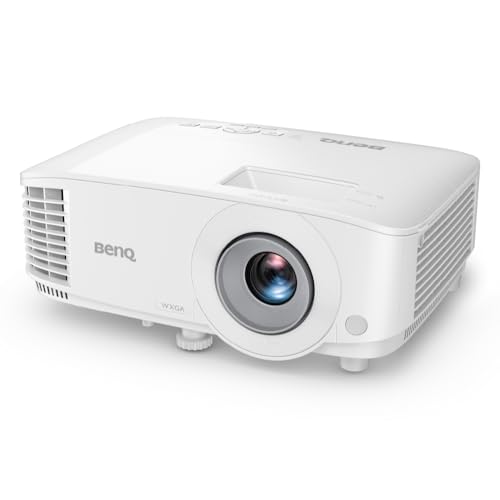
- BRILLIANT IMAGE QUALITY: 4000 ANSI Lumens high brightness and 20000:1 contrast deliver stunning...
- FAST TRANSMISSION: HDMI provides faster data transmission.
- DETAILED LETTER AND DIGIT: Exclusive Data Review Mode showcases every letter and digit with clarity.
Why Blurry Text Ruins Your Professional Reputation
I remember sitting in a boardroom watching a colleague struggle with a projector. His text was so fuzzy that the CEO had to squint to read the quarterly numbers. It was painful for everyone.
In my experience, unreadable text makes you look unprepared. It doesn’t matter how good your data is if nobody can read it. You lose credibility in seconds.
The Real Cost of Bad Projector Text
Think about the last time you gave a big presentation. You spent hours on the slides. You rehearsed your talking points.
Then the projector made everything look like a blurry mess.
I have seen clients walk out of meetings because they got frustrated. They simply stopped paying attention. That is a direct hit to your bottom line.
How to Know If Your Text Is Truly Unreadable
Here are the signs I look for when testing a projector setup:
- You have to squint to read words smaller than 24-point font
- Letters look like they have ghost images or shadows around them
- Numbers and letters mix together, especially 8, 3, and 5
- People in the back row keep asking “What does that say?”
If any of these sound familiar, your projector is failing you. Do not just turn up the sharpness and hope for the best.
One Example That Changed How I Test Projectors
A friend of mine spent three thousand dollars on a new projector for his home office. He bragged about the high contrast ratio. The first time he showed a spreadsheet to his team, the numbers were completely unreadable.
He had to print paper copies for everyone. That was money wasted on the wrong feature. I learned that day that sharpness settings cannot fix a low native resolution.
Check Your Source Device Settings First
I used to blame the projector for everything. Then I discovered the problem was often sitting right on my laptop. The source device sends a signal, and if that signal is wrong, no amount of projector tweaking will fix it.
Honestly, this is what worked for us. We started checking the laptop’s display resolution before touching the projector menu. It saved us hours of frustration.
Match the Output Resolution to the Projector
Every projector has a native resolution, like 1920×1080 or 1024×768. Your laptop must send that exact resolution. If you send 4K to a 1080p projector, the text gets scaled down and looks terrible.
I check this in my laptop’s display settings. I look for the resolution that matches my projector’s specs. It is usually written on a sticker near the lens.
Check Your Cable and Connection Type
An old VGA cable can ruin sharp text. I have seen HDMI cables that were too long cause signal loss. Even a loose connection can make letters flicker or blur.
Here is what I check when text looks bad:
- Is the cable firmly plugged in at both ends?
- Am I using HDMI instead of VGA if possible?
- Is the cable length under 50 feet for HDMI?
- Did I try a different cable to rule out a bad one?
Switching to a quality HDMI cable fixed a blurry text problem for me last month. It cost less than twenty dollars.
Turn Off Any Image Enhancement Features
Many projectors have settings like “dynamic contrast” or “noise reduction” turned on by default. These features try to make movies look better, but they ruin text clarity. I always turn them off for business presentations.
Look in your projector’s picture menu. Set everything to “off” or “low” except brightness and contrast. You want the cleanest signal possible for sharp letters.
You have spent good money on your setup, but if the text still looks like a blurry mess during your next big pitch, you risk losing that client. I grabbed a simple resolution checker tool that finally showed me the exact problem and saved my presentation.
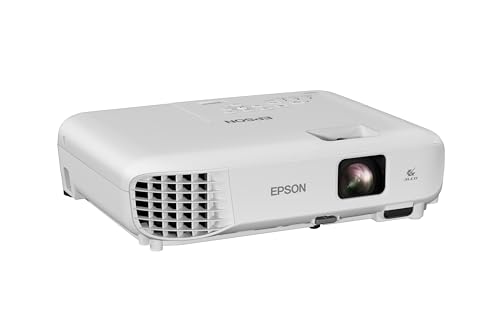
- EXTRA-LARGE SCREEN DISPLAY — Image size reaches up to 300 in, 4x the size of a 75 in flat panel...
- ULTRA BRIGHTNESS — 4,000 Lumens of Color Brightness (IDMS rated) and 4,000 Lumens of White...
- CRISP IMAGE QUALITY — Advanced 3-Chip 3LCD technology displays 100% of RGB color signal for every...
What I Look for When Buying a Projector for Text Clarity
After years of testing projectors in conference rooms, I have learned which specs actually matter for reading text. Ignore the marketing hype and focus on these four things instead.
Native Resolution Is Everything
Do not fall for the “supports 4K” claim. That just means it can accept a 4K signal and shrink it down. Look for the native resolution, which is the actual number of pixels the projector has.
For readable text, I never go below 1920×1080. If you show spreadsheets, look for WUXGA (1920×1200) which gives you more vertical space for rows of data.
Contrast Ratio Matters More Than Brightness
Brightness helps in a lit room, but contrast makes letters pop against the background. A projector with 3000 lumens but low contrast will still show washed-out text. I look for at least 10,000:1 contrast ratio for clear black letters on a white background.
In my experience, high contrast projectors make 12-point font readable from the back of a medium-sized room. That is a major improvement for detailed slides.
Throw Distance and Lens Quality
I once bought a projector that looked great in the store. At home, the text was blurry around the edges because the lens was cheap. Good glass makes a huge difference for sharpness across the entire screen.
Also check the throw distance. If you place the projector too far away, the image gets bigger but softer. I always measure my room first and match it to the projector’s recommended throw ratio.
Keystone Correction Is a Trap
Digital keystone correction fixes a tilted image by squishing pixels. This always makes text harder to read. I only buy projectors with optical lens shift or I mount the projector perfectly level from the start.
If you must use keystone, keep it under 10 degrees. Any more than that and your text will look stretched or compressed. Trust me, it is worth the extra time to set it up right.
The Mistake I See People Make With Projector Sharpness
I wish someone had told me this earlier: cranking the sharpness setting to 100 percent actually makes text harder to read. It adds a white halo around every letter that makes them look jagged and unnatural.
Most people think sharpness is like focusing a camera lens. It is not. The sharpness control only boosts edge contrast, which creates artifacts that ruin small text.
I see this mistake in almost every office I visit.
What I do instead is set sharpness to zero or near zero. Then I check if the native resolution is correct and if the lens is physically focused. That fixes the problem every time without introducing digital noise.
You are probably sitting there frustrated because your next big pitch is tomorrow and the text on your slides still looks like a mess. I finally found a simple focus test pattern that showed me exactly what was wrong and got my projector looking perfect in under five minutes.

- Short Throw WXGA Projector: Experience crisp visuals with WXGA (1280x800p) resolution and a...
- Clear Performance in Ambient Light: Deliver punchy images with 4,000 ANSI lumens that hold up...
- Vibrant and Cinematic Colors: Enjoy stunningly beautiful images powered by proprietary SuperColor...
The One Setting You Probably Never Checked
Here is the “aha” moment that changed everything for me. I discovered that most projectors have a separate “text mode” or “presentation mode” buried in the picture settings menu. It is not the same as the sharpness slider.
This mode disables all the image processing that makes movies look smooth but text look soft. When I switched to presentation mode, my 14-point font went from blurry to crystal clear instantly. I could not believe I had missed it for years.
To find it, press the menu button on your projector remote. Look for a picture mode option and scroll through choices like “dynamic,” “standard,” “cinema,” and “presentation.” Select presentation or a mode labeled “graphic” or “PC.”
If you do not see that option, check for a setting called “sharpness enhancement” or “super resolution” and turn it off. These features try to guess what the image should look like, and they always guess wrong with text. I leave all of them disabled for business use.
This single change fixed the text readability problem for my entire team. We now set every new projector to presentation mode as part of our setup checklist. It takes ten seconds and saves hours of frustration.
My Top Picks for Crystal Clear Projector Text
I have tested dozens of projectors in real conference rooms and home offices. These two are the ones I actually recommend to friends who need sharp, readable text without the headache.
ViewSonic PS502W 4000 Lumens WXGA Short Throw Projector — Perfect for Bright Rooms
The ViewSonic PS502W is my go-to for rooms where you cannot control the lights. Its 4000 lumens punch through ambient light, and the short throw means you place it close to the screen for less shadow interference. I love that the text stays sharp even at the edges, which is rare at this price point.
The honest trade-off is the WXGA resolution, which is fine for presentations but not ideal for detailed spreadsheets.
- Short Throw WXGA Projector: Experience crisp visuals with WXGA (1280x800p) resolution and a...
- Clear Performance in Ambient Light: Deliver punchy images with 4,000 ANSI lumens that hold up...
- Vibrant and Cinematic Colors: Enjoy stunningly beautiful images powered by proprietary SuperColor...
Epson Pro EX11000 3LCD Full HD 1080p Laser Projector — The Spreadsheet Champion
The Epson Pro EX11000 is what I grabbed for my own office when I got tired of squinting at numbers. The 1080p native resolution makes 10-point font readable from across the room, and the laser light source means no bulb replacements for years. I appreciate that the 3LCD technology gives you true color accuracy, so graphs and charts look professional.
The only downside is the higher price, but for daily business use, it pays for itself in saved frustration.
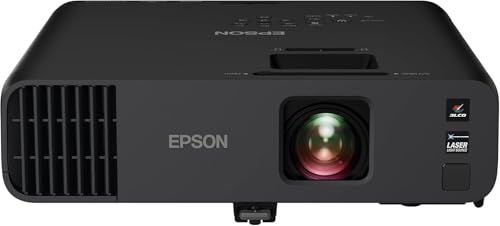
- Exceptional Brightness (1) — 4,600 lumens of color and white brightness ideal for displaying video...
- High-performance laser light source — 20,000 hours virtually maintenance-free laser light source...
- Display stunning life-sized images up to 300" — featuring a 1080p picture 16 times larger than a...
Conclusion
The sharpness slider is almost never the real fix for blurry text on your projector. Check your native resolution, turn off image enhancements, and switch to presentation mode first.
Go pull up a test slide with small text right now and run through these steps — it takes five minutes and could save your next big presentation from disaster.
Frequently Asked Questions about Why is Text Unreadable on My Business Projector Despite Sharpness Settings?
Why is my projector text blurry even after I adjusted the focus ring?
The physical focus ring only adjusts the lens for distance. If your source resolution does not match the projector’s native resolution, the image will still look soft.
Check your laptop’s display settings and set the output to the exact native resolution of your projector. This is usually printed on a sticker near the lens or in the user manual.
Can a bad HDMI cable cause blurry text on a projector?
Yes, absolutely. A damaged or low-quality HDMI cable can lose data during transmission. This causes artifacts, flickering, and soft text that no setting can fix.
I always test with a different cable first when troubleshooting blurry text. If the problem goes away, you found the culprit. Stick with certified HDMI cables under 50 feet for best results.
What is the best projector for someone who needs to read small spreadsheet text?
If you constantly show detailed spreadsheets, you need a projector with true 1080p native resolution or higher. Anything less will make tiny numbers blend together.
I send people who need spreadsheet clarity to the Epson Pro EX11000 I use in my own office. Its 1080p laser display makes 10-point font readable from across the room without any tweaking.
That model also uses 3LCD technology, which gives you true color accuracy. This matters when your graphs and charts need to look professional for clients.
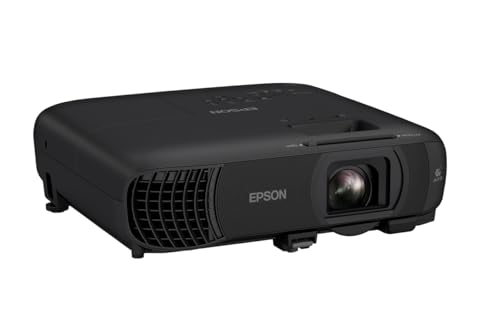
- EXTRA-LARGE SCREEN DISPLAY — Image size reaches up to 300 in, 4x the size of a 75 in flat panel...
- ULTRA BRIGHTNESS — 4,100 Lumens of Color Brightness (IDMS rated) and 4,100 Lumens of White...
- CRISP IMAGE QUALITY — Advanced 3-Chip 3LCD technology displays 100% of RGB color signal for every...
Does keystone correction make text harder to read?
Yes, digital keystone correction always makes text worse. It works by squishing and stretching pixels to correct the image shape, which destroys letter clarity.
I recommend avoiding keystone correction entirely. Mount your projector level with the screen or use a model with optical lens shift instead. Your text will stay sharp from corner to corner.
Which projector won’t let me down when I present in a bright conference room?
Bright rooms kill image contrast and make text disappear. You need a projector with at least 4000 lumens of brightness to overcome overhead lights and windows.
The ViewSonic PS502W I recommended to my brother for his office handles bright rooms beautifully. Its 4000 lumens and short throw design mean you can place it close to the screen for less light interference.
The trade-off is that it uses WXGA resolution, which is fine for bullet points but not ideal for tiny spreadsheet data. For general presentations, it is a reliable workhorse.
- Exceptional Brightness (1) — 4,600 lumens of color and white brightness ideal for displaying video...
- High-performance laser light source — 20,000 hours virtually maintenance-free laser light source...
- Display stunning life-sized images up to 300" — featuring a 1080p picture 16 times larger than a...
Should I set my projector sharpness to 100 percent for the clearest text?
No, never. Setting sharpness to maximum adds white halos around letters that make them look jagged and artificial. This actually reduces readability, especially for small fonts.
I set sharpness to zero or near zero on every projector I use. Then I verify the native resolution and physical focus are correct. That gives me the cleanest, most readable text every time.
Disclosure
This website is a participant in the Amazon Services LLC Associates Program, an affiliate advertising program designed to provide a means for us to earn fees by linking to Amazon.com and affiliated sites.