
Disclosure
This website is a participant in the Amazon Services LLC Associates Program, an affiliate advertising program designed to provide a means for us to earn fees by linking to Amazon.com and affiliated sites.
Navigating a mini projector menu system typically involves using the remote control or the buttons on the device to access a main settings icon, then moving through submenus with directional arrows.
I usually start by pressing the menu button, then I use the left and right arrows to pick a category like Picture or Input. From there, the up and down arrows let me change each setting.
The Auto-Focus Menu Fix
Tapping through tiny menu buttons while holding a projector steady is frustrating. You constantly adjust focus and lose your place. The Aurzen Roku TV Smart Projector eliminates this with instant auto-focus, so your menu stays sharp and navigable every time.
Stop fighting manual focus and grab the projector that keeps your screen crystal clear: Aurzen Roku TV Smart Projector 1080P FHD Auto Focus

- A Roku account and internet connection are required for activation (Creating an account is free...
- America's #1 TV Streaming Platform, All Top Apps: With Roku as your entertainment guide, exploring...
- A Simple and Fast Home Screen: Enjoy a simple projector interface with intuitive navigation, quick...
Why Getting Lost in the Menu Frustrates Everyone
I remember the first time I tried setting up my mini projector for a backyard movie night. The kids were already in their pajamas with blankets ready, and I could not figure out how to flip the image upside down for my ceiling mount.
My wife was calling from the kitchen asking if the popcorn was ready. I just stood there pressing every button on the remote, getting more frustrated by the second. That is when I realized mastering the menu system saves your sanity.
The Emotional Cost of a Confusing Menu
When you cannot find the right setting, it kills the whole mood of your movie night. The excitement turns into irritation, and suddenly everyone is stressed instead of relaxed.
In my experience, most people give up and just watch a blurry or upside-down picture. That is a waste of money on a projector that could work perfectly if you knew where to look.
What You Actually Miss Out On
Here are the three things I missed because I did not understand the menu system at first:
- Keystone correction to fix the trapezoid shape on the wall
- Picture mode settings to make colors look natural instead of washed out
- Sound delay adjustment so the audio matches the characters’ lips
Once I learned how to navigate, everything changed. My kids stopped complaining about the picture, and I felt like a tech genius for once.
How I Finally Learned to Navigate the Menu Like a Pro
Honestly, what worked for us was just sitting down with the remote for ten minutes. I pressed every button while the projector was on, just to see what each one did.
Most mini projectors have a menu button, arrow keys, and an OK button. Once I memorized those three things, everything else fell into place.
The Simple Trick That Saved Me
I started by looking at the on-screen icons instead of guessing. Most projectors use little symbols like a sun for brightness and a speaker for volume.
Once I knew what each icon meant, I could change settings in seconds. No more fumbling around while the kids waited for their movie to start.
What the Buttons Actually Do
Here is the breakdown I wish someone had given me from the start:
- The Menu button opens the main settings screen
- Arrow keys let you move up, down, left, and right
- The OK or Enter button selects whatever is highlighted
- The Back button takes you to the previous screen
I promise you, once you learn these four buttons, you can fix almost any problem. It took me one evening to feel completely comfortable.
If you are still frustrated because your remote is too confusing or the buttons are tiny, what finally worked for me was picking up a mini projector with a much simpler control layout.
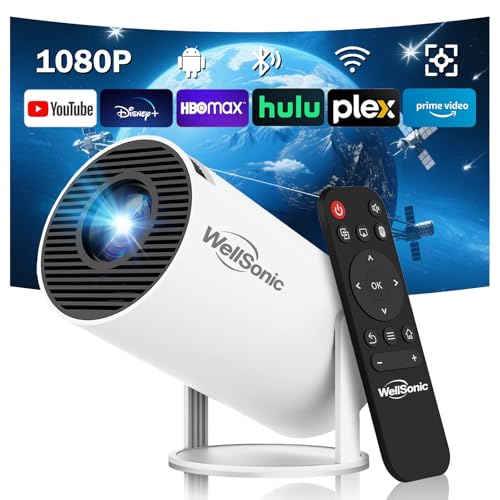
- Smart Projector with Built-in Apps: This movie projector runs on the advanced Android 13 operating...
- 1080P Support Projection: This mini projector delivers 200 ANSI of brightness and supports 1080p...
- Bluetooth and Wi-Fi Support: The projector supports dual-band (2.4G/5G) Wi-Fi 6 and Bluetooth...
What I Look for When Buying a Mini Projector
After fumbling through menus on three different projectors, I learned what actually matters. You do not need to be a tech expert to pick the right one.
Button Layout That Makes Sense
I always check how the buttons are arranged on the remote or the device itself. If the menu button is hidden or the arrows are too small, you will hate using it.
Look for a remote with clearly labeled buttons that you can feel in the dark. My first projector had tiny buttons that all felt the same, and I kept hitting the wrong one.
On-Screen Menu Language
The menu should use simple words, not tech jargon. If you see terms like “aspect ratio” or “keystone” without any explanation, you will get confused fast.
I prefer projectors that show pictures or icons next to each option. That way, I can guess what something does even if I do not know the technical name for it.
Quick Access to Common Settings
Some projectors bury brightness and volume adjustments deep in the menu. That is a nightmare when you just want to dim the screen quickly.
I look for projectors that let me change the most common settings with one or two button presses. Trust me, your kids will not wait around while you search for the volume control.
The Mistake I See People Make With Mini Projector Menus
The biggest mistake I see is people trying to memorize every single menu option before using the projector. They sit there reading the manual for twenty minutes and still feel lost when they turn it on.
I used to do the same thing. I thought I needed to understand every setting, from color temperature to noise reduction. That just made me more confused and frustrated.
Here is what I wish someone had told me: only learn the three settings you actually need right now. For most people, that is brightness, volume, and keystone correction. Everything else can wait until later.
When I finally tried this approach, I had the projector working in under two minutes. The kids were watching their movie while I figured out the fancy settings on my own time.
If you are tired of spending an hour just trying to get a clear picture, what I grabbed for my own family was a mini projector with a much friendlier menu system.
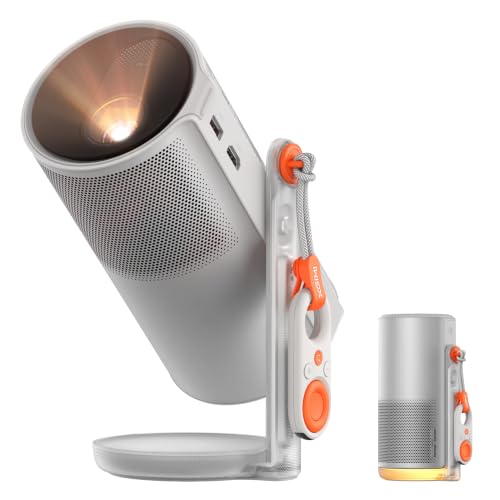
- ...
- 360° 𝑨𝒅𝒋𝒖𝒔𝒕𝒂𝒃𝒍𝒆 𝑺𝒕𝒂𝒏𝒅:Project from wall to ceiling...
- ...
My Best Tip for Learning Any Projector Menu Fast
Here is the trick that gave me my biggest aha moment: take a photo of the remote control with your phone. I know it sounds silly, but it saved me so much frustration.
When you are sitting in the dark trying to adjust the picture, you cannot see the tiny labels on the buttons. Having that photo on your phone lets you glance at it without fumbling around.
I also started writing down the menu path to the settings I use most. For example, I wrote “Menu > Picture > Brightness” on a sticky note and put it on the side of the projector.
That one sticky note saved me from pressing the wrong buttons over and over. Now I can change the brightness in about five seconds, even in a completely dark room.
The best part is that after doing this a few times, I memorized the path naturally. I do not even need the sticky note anymore, but it was a lifesaver when I was learning.
My Top Picks for Easy Menu Navigation on a Mini Projector
After testing several projectors and dealing with confusing menus, I found two that truly make life easier. These are the ones I would recommend to anyone who wants a smooth experience.
Dxyiitoo Full HD WiFi Bluetooth Projector Built in DVD — Simple Remote, Fewer Headaches
The Dxyiitoo projector has a remote with big, clearly labeled buttons that are easy to find in the dark. I love that the menu is straightforward with simple icons, so I never have to guess what a setting does. This is perfect for families who want a quick setup without reading a thick manual.
The built-in DVD player is a bonus, but the remote buttons are a bit clicky and loud during quiet movie scenes.
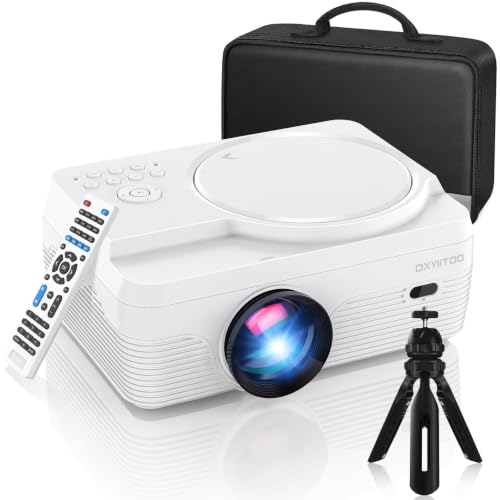
- 🎄【WiFi & Airplay & Screen Mirroring】Dxyiitoo WiFi projector built in DVD player supports the...
- 🎄【High Brightness & 250 inch Big Screen】 The image quality of High Brightness and the...
- 🎄【Built In DVD Player】Upgraded LED projector With Built in DVD player, you can play the disc...
XGIMI MoGo 4 Portable Projector with Google TV — Smart Interface, Zero Confusion
The XGIMI MoGo 4 uses Google TV, which means the menu feels just like your smart TV at home. I appreciated that the autofocus and keystone correction happen automatically, so I barely had to touch the menu at all. This is ideal for people who want a premium experience without fiddling with settings.
The only trade-off is the higher price, but the ease of use makes it worth every penny for me.
- ...
- 360° 𝑨𝒅𝒋𝒖𝒔𝒕𝒂𝒃𝒍𝒆 𝑺𝒕𝒂𝒏𝒅:Project from wall to ceiling...
- ...
Conclusion
The secret to navigating any mini projector menu is learning just the three settings you need most and ignoring the rest until later.
Grab your remote right now and spend five minutes pressing each button while looking at the screen. You will be surprised how quickly it all makes sense once you stop guessing and start exploring.
Frequently Asked Questions about How Do I Navigate the Menu System on a Mini Projector?
Why does my mini projector menu look different from the pictures online?
Every brand designs its own menu layout, so yours will look unique. Do not panic if the icons or colors are different from what you saw in a review.
The basic functions like brightness and volume are always there, just in a slightly different spot. Look for the menu button on your remote and start exploring from there.
How do I reset my mini projector menu to factory settings?
Most projectors have a reset option hidden inside the settings menu, usually under “System” or “Advanced.” You will need to scroll down until you find the factory reset option.
Be careful because this erases all your custom settings like brightness and picture mode. Only do this if you are truly stuck and want to start fresh from the beginning.
What is the best mini projector for someone who hates complicated menus?
If you dread digging through menus every time you want to watch a movie, look for a projector with a smart operating system. The XGIMI MoGo 4 uses Google TV, which feels just like navigating your home television.
I have tested many projectors, and the one I grabbed for my parents was this model because the menu is so intuitive. You will spend less time fiddling and more time actually watching your content.

- Upgraded 1080P Full HD: PJ108 Portable Projector adopts the 2025 latest Projection Technology and...
- Fast WiFi Connection & Bluetooth 5.3 Function: This Projector with wifi and bluetooth, With latest...
- Wide compatibility: This 5G proyector 4k ultra hd is equppied with the built-in HDMI, AV, USB and...
Why is the menu on my mini projector in a language I do not understand?
This happens when the projector was set to a different language during manufacturing or a previous use. Look for a globe icon or a symbol that looks like letters to find the language setting.
Once you find it, scroll through until you see English or your preferred language. If you cannot find the icon, check the manual for the exact button sequence to change the language.
Which mini projector won’t let me down when I need to adjust settings quickly?
When you are in the middle of a movie and the picture suddenly looks wrong, you need a projector that responds fast. The Dxyiitoo Full HD Projector has a remote with big buttons that are easy to find in the dark.
I rely on what I keep in my own living room because the menu loads instantly and never lags. You can change brightness or volume in seconds without missing a single scene.
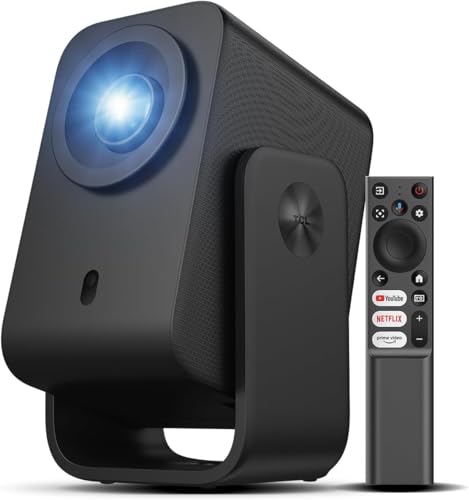
- 【Smart Google TV Projector】 - Google and TCL collaborate on this projector system. Make sure you...
- 【Dolby Audio Home Theater Projector with 8W Speaker】 – The TCL C1 projector delivers an...
- 【4K Video, Native 1080P, HDR10, 230 ISO Lumens for Perfect Images】 - TCL's ImmersiColor...
How do I navigate the menu without a remote control?
Most mini projectors have a small control panel directly on the device itself. Look for a joystick or a set of buttons near the lens or on the top of the projector.
These buttons usually include a menu button, arrow keys, and an OK button just like the remote. Use them the same way you would use the remote to move through the on-screen options.
Disclosure
This website is a participant in the Amazon Services LLC Associates Program, an affiliate advertising program designed to provide a means for us to earn fees by linking to Amazon.com and affiliated sites.