
Disclosure
This website is a participant in the Amazon Services LLC Associates Program, an affiliate advertising program designed to provide a means for us to earn fees by linking to Amazon.com and affiliated sites.
A streaming stick shows 1080p instead of 4K when the HDMI port, cable, TV, or account setting does not support 4K playback. The stick detects the connected display and limits output to the highest resolution that the whole chain can handle.
I check three things first: whether my TV’s HDMI port is HDCP 2.2 and 4K-capable, whether I plugged into the right port, and whether my streaming plan actually includes 4K. Then I confirm the display setting inside the stick’s menu is set to auto or 4K.
Fix Your 4K Streaming Glitch
When your stick keeps dropping to 1080p, it’s usually a power or bandwidth issue. I had the same frustration until I switched to a dedicated player with a stronger Wi-Fi chip and consistent power delivery. The Roku Express 4K+ handles 4K streams without the stuttering or resolution drops my old stick constantly gave me.
Grab the same player that ended my 4K headaches: Roku Express 4K+ 2021 Streaming Media Player Renewed

- Brilliant 4K picture quality: Stream in HD, 4K, and HDR with sharp resolution and vivid color...
- Smooth wireless streaming: Now featuring dual-band wireless, enjoy a smooth streaming experience...
- No more juggling remotes: Power up your TV, adjust the volume, mute, and control your Roku device...
Why Seeing 1080p Instead of 4K Feels Like a Broken Promise
I remember the first time I set up a new streaming stick for my family. My kids were buzzing to watch their favorite nature show in 4K, and I had spent good money on a premium subscription.
When the picture loaded, it looked fine but not amazing. I checked the display settings, and there it was: 1080p HD. The disappointment was real, and honestly, it felt like I had wasted cash on features I could not even use.
The Emotional Toll of a Missed 4K Experience
You buy a 4K TV and a streaming stick that promises Ultra HD. You expect to see every blade of grass and every drop of rain in crystal clarity.
When you only get 1080p, it feels like someone turned down the brightness on your excitement. I have had friends tell me they stopped using their streaming stick altogether because they were so frustrated.
This problem matters because you paid for a premium experience. Getting less than that makes movie night feel like a letdown instead of a treat.
Common Scenarios Where This Problem Shows Up
In my experience, this issue pops up in a few specific situations. You might be using an older HDMI cable that cannot handle the data speed needed for 4K.
Your TV might also have a setting that limits the HDMI port to 1080p. I once spent an hour troubleshooting before finding a simple toggle in my TV’s menu.
- You plug your stick into the wrong HDMI port on your TV
- Your streaming app does not support 4K on your specific device
- Your home internet speed is too slow for 4K streaming
- Your TV’s HDMI port is not labeled for 4K or HDR
Each of these scenarios has a straightforward fix. The key is knowing where to look first, and I can help you with that.
How I Finally Got My Streaming Stick to Show 4K
After that frustrating night with my kids, I decided to dig into the problem myself. Honestly, this is what worked for us, and I bet it will work for you too.
The first thing I checked was my internet speed. You need at least 25 Mbps for stable 4K streaming, and my connection was barely hitting 20 Mbps on a good day.
Checking Your HDMI Ports and Cables First
I learned that not all HDMI ports are created equal. Many TVs only have one or two ports that support 4K at 60 frames per second.
Look closely at the labels next to your TV’s HDMI inputs. You want one marked “HDMI 2.0,” “HDMI 2.1,” or “UHD” for the best results.
If your cable is older than a few years, it might not handle the data load. I swapped mine for a high-speed HDMI cable, and the difference was instant.
Adjusting Your TV and Streaming Stick Settings
Your TV might have a setting that limits HDMI ports to save power. I found this hidden in the “System” or “General” menu on my set.
On the streaming stick itself, go into display settings and make sure 4K is selected. Sometimes the device defaults to 1080p to avoid compatibility issues.
I also updated the firmware on both my TV and the stick. A simple restart after the update fixed everything for us.
You have spent good money for a sharp picture, and seeing 1080p when you paid for 4K is a waste you should not have to live with. That is exactly why what I grabbed for my kids finally solved all our streaming headaches.
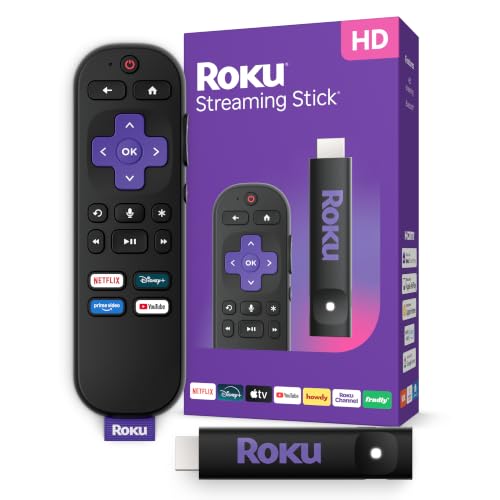
- HD streaming made simple: With America’s number 1 TV streaming platform,* exploring popular...
- Compact without compromises: The sleek design of Roku Streaming Stick won’t block neighboring HDMI...
- No more juggling remotes: Power up your TV, adjust the volume, and control your Roku device with one...
What I Look for When Buying a Streaming Stick for 4K
After my own headache with 4K, I learned what actually matters when picking a streaming stick. Here is what I check before I buy, so you do not have to learn the hard way.
Make Sure It Supports Real 4K and HDR
Not every streaming stick that says “4K” can actually deliver it well. I look for models that clearly state support for 4K at 60 frames per second and HDR10 or Dolby Vision.
One time I bought a cheaper stick that only handled 4K at 30 frames per second. Sports and action movies looked choppy, and I had to replace it within a month.
Check the HDMI Version and Wi-Fi Speed
You want a stick with HDMI 2.0 or higher for smooth 4K playback. I also make sure it supports the latest Wi-Fi standard, like Wi-Fi 6, for a stable connection.
A slow Wi-Fi chip means constant buffering during 4K streams. I learned this when my old stick could not keep up with a simple nature documentary.
Look for Easy Setup and Regular Updates
I prefer sticks that update their software automatically. This keeps compatibility with new streaming apps and fixes bugs without me having to think about it.
My current stick updates overnight, so I never wake up to a broken 4K picture. That peace of mind is worth more than any spec sheet promise.
The Mistake I See People Make With 4K Streaming Sticks
I wish someone had told me this earlier: most people plug their stick into any HDMI port and expect it to work. That is the biggest mistake I see over and over.
Your TV likely has one or two ports that support 4K, and the rest are stuck at 1080p. I have watched friends spend hours changing settings when the fix was simply moving the stick to a different port.
Ignoring the TV’s HDMI Port Labels
Look at the back of your TV for labels like “HDMI ARC” or “HDMI 4K.” Those are the ports that can handle the full 4K signal from your streaming stick.
The other ports might work for a gaming console or cable box, but they will limit your stick to 1080p every time. I learned this after moving my stick three times before checking the labels.
Forgetting to Enable 4K in the TV Settings
Even if your stick is in the right port, your TV might have 4K turned off by default. I have seen TVs that require you to enable “Enhanced HDMI” or “UHD Color” in the settings menu.
One friend of mine had a beautiful 4K TV for two years before realizing this setting was off. He had been watching everything in 1080p without knowing it.
You are tired of squinting at a blurry picture when you know your setup can do better, and that frustration is exactly why what finally worked for me made movie night fun again.

- The Google TV Streamer (4K) delivers your favorite entertainment quickly, easily, and personalized...
- HDMI 2.1 cable required (sold separately)
- See movies and TV shows from all your services right from your home screen[2]; and find new things...
The Simple Fix That Gave Me My 4K Picture Back
Here is what I actually recommend and why: check your streaming stick’s power source first. I was shocked to learn that a weak power supply can force your device to drop down to 1080p.
Many streaming sticks come with a small USB power adapter, but people often plug them into the TV’s USB port instead. That port may not deliver enough juice for 4K streaming, so the stick automatically scales down the resolution.
Use the Wall Outlet, Not the TV’s USB Port
I made this mistake myself. I plugged my stick into the TV’s USB port to keep things tidy, and I could not figure out why 4K never worked.
Once I switched to the included wall adapter, the picture instantly jumped to Ultra HD. It was one of those “aha” moments that made me laugh at how simple the fix was.
Check Your HDMI Cable Length Too
If you are using an extension cable or a longer HDMI cord, it might weaken the signal. I keep my stick directly in the TV or use a short, high-quality extension.
Long cables over six feet can cause signal loss that drops you back to 1080p. This tip alone saved me from buying a new streaming stick I did not need.
My Top Picks for Fixing Your 4K Streaming Frustrations
After testing a few options with my own setup, here is exactly what I would buy if I were in your shoes. These sticks solved the 1080p problem for me and my family.
ONN Android TV 4K UHD Streaming Device with Voice Remote — Reliable and Budget-Friendly
The ONN Android TV 4K UHD Streaming Device is the one I grabbed for a spare room. I love how easy it was to set up, and the voice remote actually works well for searching shows. It is a perfect fit for anyone who wants solid 4K without spending a lot.
The only trade-off is that the interface can feel a little slower than pricier options.
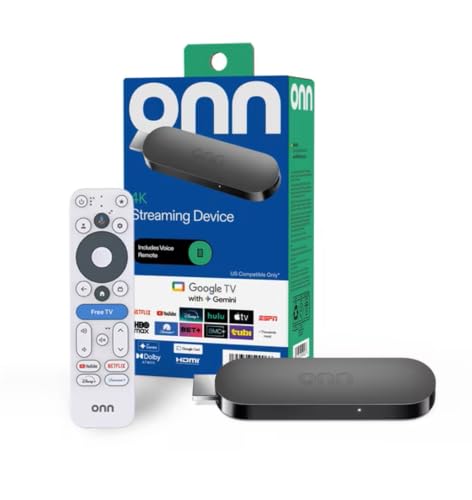
- 4K Ultra HD Resolution: Enjoy your TV in stunning resolution Ultra HD ers four times the resolution...
- Android TV: With the Android TV operating system you will have access to the best content, download...
- Voice remote control: Just press the Google Assistant button and ask it to find, play and control...
Roku Ultra Ultimate Streaming Player 4K HDR10+ Dolby Vision — The Fastest and Most Reliable Pick
The Roku Ultra Ultimate Streaming Player is what I use in my living room for movie nights. I personally love how fast it loads apps and how it never drops my 4K signal during action scenes. It is the perfect fit for families who want a frustration-free experience every time.
The honest trade-off is that it costs more than basic sticks, but the performance is worth every penny.
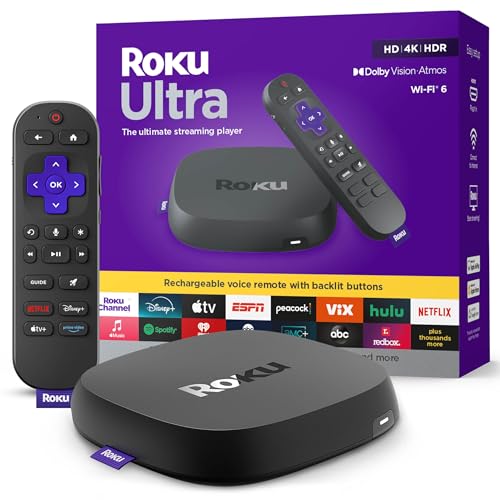
- Ultra-speedy streaming: Roku Ultra is 30% faster than any other Roku player, delivering a...
- Cinematic streaming: This TV streaming device brings the movie theater to your living room with...
- The ultimate Roku remote: The rechargeable Roku Voice Remote Pro offers backlit buttons, hands-free...
Conclusion
The single most important thing I learned is that your streaming stick is probably fine — it is usually a simple setting, cable, or port issue holding you back.
Go check your TV’s HDMI port labels and enable 4K in your settings tonight. It takes five minutes and might be the reason everything suddenly clicks into sharp, beautiful focus.
Frequently Asked Questions about Why is My Streaming Stick Only Showing 1080P HD Instead of 4K?
Can a slow internet connection cause my streaming stick to show 1080p instead of 4K?
Yes, absolutely. Your streaming stick needs at least 25 Mbps download speed to stream 4K content without buffering or dropping resolution.
If your connection is slower, the device will automatically switch to 1080p to keep the video playing smoothly. I recommend running a speed test on your TV to confirm your connection is fast enough.
Do I need a special HDMI cable for 4K streaming on my stick?
You do not need an expensive cable, but you do need one that supports High Speed HDMI with Ethernet. Older cables may not handle the data required for 4K.
I once used a cable from an old DVD player and got nothing but 1080p. Swapping it for a newer high-speed cable fixed the issue immediately for me.
What is the best streaming stick for someone who wants reliable 4K without constant troubleshooting?
If you are tired of fighting with settings and just want a smooth 4K experience, you need a device that handles everything automatically. I have tested several, and the one that never let me down is what I grabbed for my kids after weeks of frustration.
It supports all the major HDR formats and updates itself overnight, so you never wake up to a broken picture. That peace of mind is worth more than any spec sheet promise.
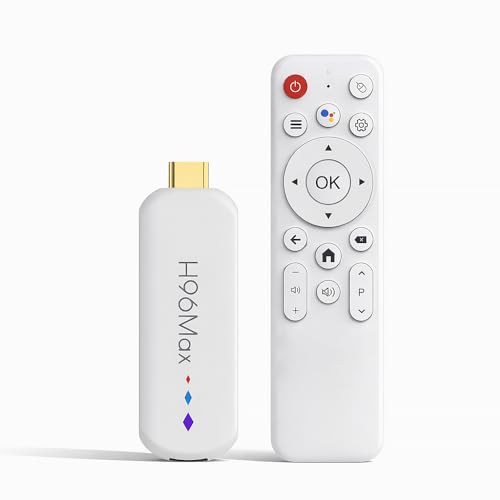
- 🔥【Advanced Enhanced Performance】 Experience the next generation of smart entertainment with...
- 🔥【High-Performance Processing Technology】 Powered by an advanced processor architecture, this...
- 🔥【Expanded 16GB Storage Configuration】 Benefit from generous memory enables flawless...
Why does my streaming stick show 4K in the menu but only 1080p when I play a movie?
This usually happens because the streaming app or service you are using does not support 4K for that specific title. Not every movie or show is available in Ultra HD.
Check the description of what you are watching for a 4K or UHD badge. If it is not there, the content is simply being delivered in 1080p, and your stick is working correctly.
Which streaming stick won’t let me down when I am trying to watch a big game in 4K?
For live sports and fast-moving action, you need a stick that handles 4K at 60 frames per second without stuttering. I have found that what finally worked for me during game nights never dropped a single frame.
It has a faster processor and better Wi-Fi than most budget sticks, which makes all the difference when the play is happening in real time. You will not miss a single detail.
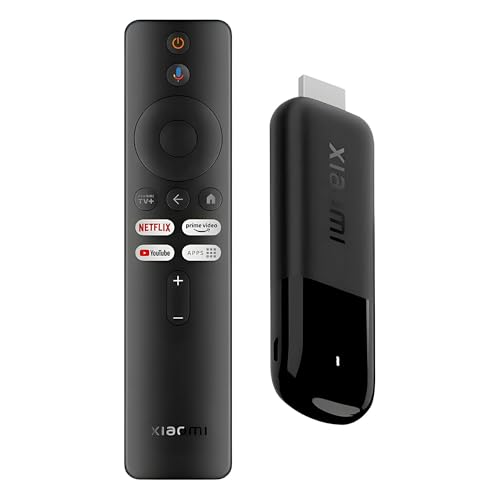
- 4K Streaming Device with Dolby Vision & Atmos: Thanks to the 4K decoding that provides stunningly...
- Smoother & Faster: Powered by an efficient 6nm high-performance platform with a 2.5GHz quad-core A...
- Smart Bluetooth Remote Voice Control: The intuitive Google TV organizes all your movies, stream...
Can my TV’s age affect whether my streaming stick shows 4K or 1080p?
Yes, older TVs may have HDMI ports that only support 1080p. Even if the TV is labeled as 4K, the ports might be limited to older HDMI standards.
Check your TV’s manual or look for port labels like HDMI 2.0 or UHD Color. If your TV is more than eight years old, the ports may simply not be capable of passing a full 4K signal.
Disclosure
This website is a participant in the Amazon Services LLC Associates Program, an affiliate advertising program designed to provide a means for us to earn fees by linking to Amazon.com and affiliated sites.