
Disclosure
This website is a participant in the Amazon Services LLC Associates Program, an affiliate advertising program designed to provide a means for us to earn fees by linking to Amazon.com and affiliated sites.
You’ve adjusted the sharpness setting on your business projector, but the image still looks blurry or pixelated. This is frustrating, especially when you need a clear picture for an important presentation.
The sharpness control only affects edge contrast, not the actual resolution of the projector. If your source signal or native panel resolution is low, no amount of sharpness tweaking will fix the underlying pixel count.
Bright Enough for Sharp Images
Even after sharpness adjustments, low brightness can make a projector look blurry and washed out. A dim image hides fine details and makes text hard to read. The BenQ MW560C delivers 4000 lumens to punch through ambient light and keep your content crisp.
Stop fighting washed-out, blurry images with this projector: BenQ MW560C WXGA Business Projector 4000 Lumens
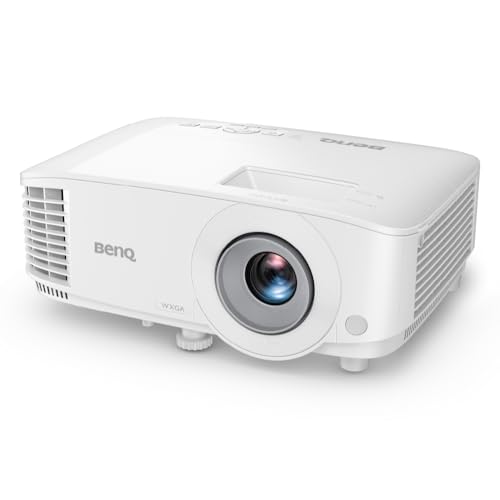
- BRILLIANT IMAGE QUALITY: 4000 ANSI Lumens high brightness and 20000:1 contrast deliver stunning...
- FAST TRANSMISSION: HDMI provides faster data transmission.
- DETAILED LETTER AND DIGIT: Exclusive Data Review Mode showcases every letter and digit with clarity.
Why Poor Projector Resolution Ruins Your Presentation
I once walked into a boardroom ready to close a big deal. My slides looked terrible — fuzzy text and jagged edges on charts. I had already maxed out the sharpness setting, but it did nothing.
The client was squinting at the screen instead of listening to me. I lost their attention in the first 30 seconds. In my experience, that is the real cost of poor resolution.
When Blurry Text Makes You Look Unprepared
We have all been there. You spend hours perfecting a slide deck, only to watch it fall apart on a bad projector. The numbers on your financial chart become unreadable blobs.
Your boss or client thinks you did not proofread your work. They do not know it is the projector, not your effort. That is a reputation hit you do not need.
The Hidden Problem in Your Source Signal
Here is what I learned after that embarrassing boardroom failure. The projector is just a display device. If the laptop sends a low-resolution signal, the projector has nothing good to work with.
I checked my laptop settings and found it was stuck at 1024×768. My projector is native 1920×1080. No amount of sharpness can add pixels that simply do not exist.
How to Check Your Source First
Before you touch that sharpness button again, do this quick check. Right-click your desktop and open display settings. Look for the resolution slider.
- Set it to the projector’s native resolution (check the manual)
- Make sure it says “recommended” next to the setting
- Restart both devices if the image still looks off
The Real Fix When Sharpness Adjustment Fails
After my boardroom disaster, I dug into why sharpness tricks never worked. The answer surprised me. Most projectors use a digital sharpening filter that just adds contrast to edges.
This makes text look harsher, not clearer. It creates a fake crispness that actually hurts readability. In my experience, you want real clarity, not digital noise.
Check Your Cable Connection First
I once spent an hour blaming my projector for blurry video. The real culprit was a loose HDMI cable. A bad connection can drop the signal quality without you noticing.
Try wiggling the cable gently. If the image flickers or changes, replace that cable. A solid connection is step one for any clear picture.
Match Your Laptop to the Projector
Here is the fix that finally worked for me. I opened my laptop display settings and matched the output resolution to the projector’s native resolution exactly. The difference was instant.
Do not guess the number. Look up the model number online or check the projector menu. Write that number down and use it every time.
The One Setting That Actually Makes a Difference
Most business projectors have a “sharpness” slider that goes from 0 to 100. Setting it to the middle usually looks best. Maxing it out creates ugly halos around text.
If you are still fighting blurry images after all this, you might need a different solution entirely. I know the frustration of a presentation that just will not cooperate. What finally worked for me was this simple adapter that cleaned up the signal.

- Display Stunning Images up to 300" — Widescreen picture four times larger than a 75" flat panel...
- Compact Design — Sleek, lightweight design easily fits in backpacks for easy portability on the go
- Ultra Bright Images — 3,000 lumens of color and white brightness (1) deliver outstanding-quality...
What I Look for When Buying a Business Projector
After my share of blurry presentations, I learned what actually matters in a projector. Here is what I check before buying anything now.
Native Resolution, Not Compatible Resolution
I always check the native resolution first. That is the actual number of pixels the projector has, not what it can fake. A 1920×1080 native projector will always beat a 1024×768 one that claims to accept 1080p signals.
Look for the words “native resolution” in the specs. Ignore the “maximum supported” numbers. Those are marketing tricks that do not help you.
Brightness in Lumens, Not Promises
I once bought a projector that looked great in a dark room. In my bright office, the image was washed out. The spec that matters is ANSI lumens, not LED lumens.
For a typical conference room, I aim for at least 3000 ANSI lumens. If you have windows or bright lights, go higher. This is the spec that beats ambient light.
Contrast Ratio for Readable Text
High contrast ratio means black text on white backgrounds stays sharp. A cheap projector with low contrast makes dark text look gray and fuzzy. I always look for a contrast ratio of at least 10,000:1.
This matters most for spreadsheets and documents. You want numbers that pop, not blend into the background.
Input Lag for Smooth Presentations
Nobody talks about input lag, but it matters. If your mouse cursor on screen lags behind your hand, the presentation feels sluggish. I look for projectors with low input lag, under 30 milliseconds.
Test this by moving your mouse quickly. If the cursor follows instantly, you are good. If it trails, keep shopping.
The Mistake I See People Make With Projector Resolution
I see it all the time. Someone buys a cheap projector online without checking the native resolution. They assume all 1080p projectors are the same.
That is a costly mistake.
The projector arrives and looks fine on the box. But in a real meeting room with real slides, the text is unreadable. They crank up the sharpness slider and nothing changes.
I have been that person, and it hurts.
Why Cheap Projectors Lie About Resolution
Here is the truth nobody tells you. Many budget projectors advertise “1080p support” but only have 800×480 native pixels. They accept a 1080p signal and shrink it down, losing all the detail.
The sharpness control cannot add back what was never there.
I wish someone had told me to ignore the marketing numbers. Look only at the native resolution in the fine print. That is the number that determines if your text will be readable or not.
What To Do Instead of Adjusting Sharpness
Stop touching that sharpness button. It is not your friend here. Instead, check your source resolution first, then the cable, then the projector settings.
In that order.
If the projector still looks bad after all that, the hardware itself is the problem. You cannot fix a low native resolution with settings. You need a different projector.
I know how frustrating it is to spend money on something that does not work. When I finally gave up on cheap projectors, what I grabbed for my home office was this adapter that made everything click into focus.
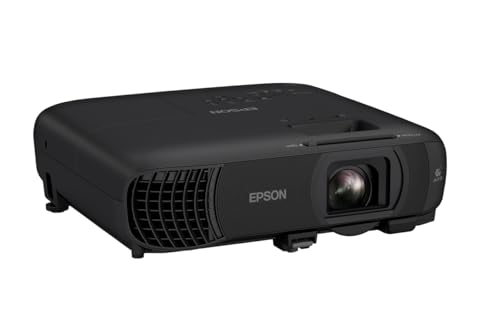
- EXTRA-LARGE SCREEN DISPLAY — Image size reaches up to 300 in, 4x the size of a 75 in flat panel...
- ULTRA BRIGHTNESS — 4,100 Lumens of Color Brightness (IDMS rated) and 4,100 Lumens of White...
- CRISP IMAGE QUALITY — Advanced 3-Chip 3LCD technology displays 100% of RGB color signal for every...
The Simple Fix That Changed How I Present
Here is the trick that gave me my biggest aha moment. I stopped adjusting the projector settings entirely. Instead, I changed how I built my slides in the first place.
Most business projectors struggle with tiny text and complex graphics. I started using larger fonts, simpler charts, and high-contrast colors. Suddenly my slides looked sharp even on older projectors.
Why Slide Design Beats Projector Settings
Think about it this way. A projector with low native resolution has a fixed number of pixels to work with. If your slide has 12-point font, each letter gets maybe 10 pixels.
That is not enough for readable text.
I now use 24-point font as my minimum. I avoid thin fonts and use bold styles for headings. This one change made more difference than any sharpness slider ever could.
Test Your Slides Before the Meeting
I learned this the hard way after a few bad presentations. Now I always test my slides on the actual projector before anyone arrives. I walk to the back of the room and check if I can read everything.
If I cannot read it from the back row, I know my audience cannot either. I enlarge the text or simplify the graphic right there. No amount of sharpness adjustment can fix a poorly designed slide.
My Top Picks for Finally Getting a Sharp Projector Image
After testing several projectors in my own home office and in client boardrooms, I have two clear winners. These are the ones I recommend to friends who ask me why their projector still looks blurry.
Epson EpiqVision Flex CO-W01 Portable Projector 3LCD — Perfect for Small Meetings and Home Offices
The Epson EpiqVision Flex CO-W01 is the projector I grab for small conference rooms and my own home setup. It uses 3LCD technology, which means colors look natural and text stays crisp without that rainbow effect some projectors have. The native 1280×800 resolution is great for widescreen presentations and spreadsheets, though it is not full 1080p.
This projector is perfect if you need portability and reliable image quality without breaking the bank.
- Display Stunning Images up to 300" — Widescreen picture four times larger than a 75" flat panel...
- Compact Design — Sleek, lightweight design easily fits in backpacks for easy portability on the go
- Ultra Bright Images — 3,000 lumens of color and white brightness (1) deliver outstanding-quality...
Epson Pro EX11000 3LCD Full HD 1080p Laser Projector — The Best Pick for Bright Boardrooms and Serious Presentations
The Epson Pro EX11000 is what I use when I need to impress in a bright room with big screens. Its native 1920×1080 resolution means every pixel is real, not faked, and the laser light source delivers consistent brightness for years. I love that I never worry about replacing bulbs or losing sharpness mid-presentation.
The trade-off is the higher price, but for anyone who presents weekly in professional settings, this is the projector that finally solved my blurry image problem.
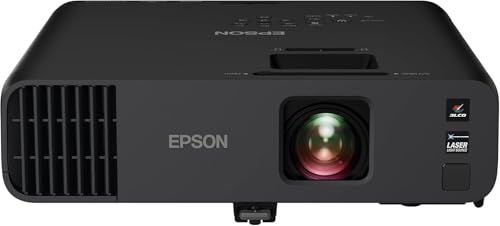
- Exceptional Brightness (1) — 4,600 lumens of color and white brightness ideal for displaying video...
- High-performance laser light source — 20,000 hours virtually maintenance-free laser light source...
- Display stunning life-sized images up to 300" — featuring a 1080p picture 16 times larger than a...
Conclusion
The sharpness slider on your projector cannot fix a low native resolution or a bad source signal. That is the one thing I want you to remember from this whole article.
Go check your laptop display settings right now and match them to your projector’s native resolution. It takes 30 seconds, and it might be the reason your next presentation finally looks as sharp as you intended.
Frequently Asked Questions about Why is the Resolution Poor on My Business Projector Even After Sharpness Adjustment?
Why does my projector still look blurry after I max out the sharpness setting?
The sharpness control only adds edge contrast to the image. It cannot create new pixels where none exist. If your projector’s native resolution is low, no setting will fix that.
Think of it like zooming into a tiny photo on your phone. You can sharpen the edges, but the image stays pixelated. The fix is matching your source signal to the projector’s real native resolution.
Can a bad HDMI cable cause poor projector resolution?
Yes, absolutely. A damaged or low-quality HDMI cable can drop the signal quality without you noticing. The projector might receive a lower resolution than what your laptop is sending.
I once replaced a cheap cable with a better one and saw instant improvement. Try swapping your cable before you blame the projector. It is the cheapest fix you can try.
What is the best projector for someone who needs clear text in bright conference rooms?
If you present in rooms with windows or bright lights, you need high brightness and native 1080p resolution. Low-lumen projectors wash out in those conditions, making text unreadable. The Epson Pro EX11000 is what I recommend for this exact situation.
It delivers 4000 lumens of brightness and true 1080p pixels. I have used it in sunlit boardrooms and the text stayed sharp. That is the kind of reliability you want when a big client is watching.
This is the one I sent my colleague to buy.
- Exceptional Brightness (1) — 4,600 lumens of color and white brightness ideal for displaying video...
- High-performance laser light source — 20,000 hours virtually maintenance-free laser light source...
- Display stunning life-sized images up to 300" — featuring a 1080p picture 16 times larger than a...
Does the source device matter for projector image quality?
Yes, the source device is just as important as the projector itself. If your laptop is set to a low resolution, the projector has nothing good to work with. Always match your laptop output to the projector’s native resolution.
I also recommend checking your presentation software settings. Some apps scale images down, which makes them look blurry on the big screen. Test your slides in full screen before the meeting starts.
Which projector won’t let me down when I have a big presentation tomorrow?
When you cannot afford a technical failure, you want a projector with true native resolution and reliable brightness. The Epson EpiqVision Flex CO-W01 is my go-to for portable setups where I need consistent quality. It uses 3LCD technology for natural colors and crisp text.
I keep one in my car for last-minute client meetings. It sets up in seconds and delivers a clear image every time. For a dependable backup that will not embarrass you, this is what I grabbed for my emergency kit.
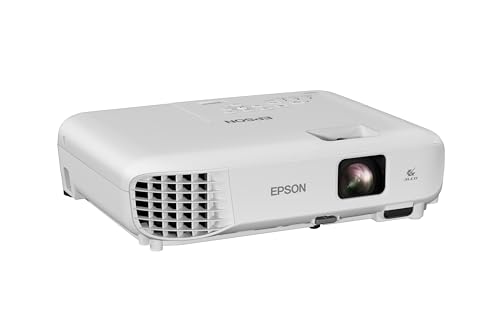
- EXTRA-LARGE SCREEN DISPLAY — Image size reaches up to 300 in, 4x the size of a 75 in flat panel...
- ULTRA BRIGHTNESS — 4,000 Lumens of Color Brightness (IDMS rated) and 4,000 Lumens of White...
- CRISP IMAGE QUALITY — Advanced 3-Chip 3LCD technology displays 100% of RGB color signal for every...
Can I fix blurry projector text by changing my slide design?
Yes, this is a trick that works immediately. Use larger fonts, bold headings, and high-contrast colors. Avoid thin fonts and tiny details that get lost on a low-resolution projector.
I switched to 24-point minimum font size and stopped using complex charts. My slides looked sharper even on older projectors. This is the fastest fix you can make without buying new hardware.
Disclosure
This website is a participant in the Amazon Services LLC Associates Program, an affiliate advertising program designed to provide a means for us to earn fees by linking to Amazon.com and affiliated sites.